
Your child opens Roblox Studio, full of ideas — and within minutes, it freezes, stutters, or crawls. It’s one of the most common frustrations young game creators face. And without the right fix, that creative spark can disappear fast.
Understanding why Roblox Studio is lagging is the first step to solving it. This guide covers every real cause — hardware, software, network, and scripting — plus practical fixes your family can action today. We’ll also show you how building stronger coding skills helps your child create games that actually run smoothly.
New to Roblox Studio entirely? Start with our beginner’s guide to Roblox Studio for parents before diving into these fixes.
Lag in Roblox Studio means the software is responding slower than expected. Your child might notice:
Roblox Studio is a professional-grade game development environment, not just a game. It demands more from a computer than simply playing Roblox does. When it lags, something — hardware, software, or the project itself — is creating a bottleneck.
The good news? Most causes are fixable. And understanding them is actually a brilliant entry point into real game development thinking.
If your child loves building in Roblox Studio, our dedicated Roblox coding course for kids teaches the exact skills that make games run faster and feel more professional.
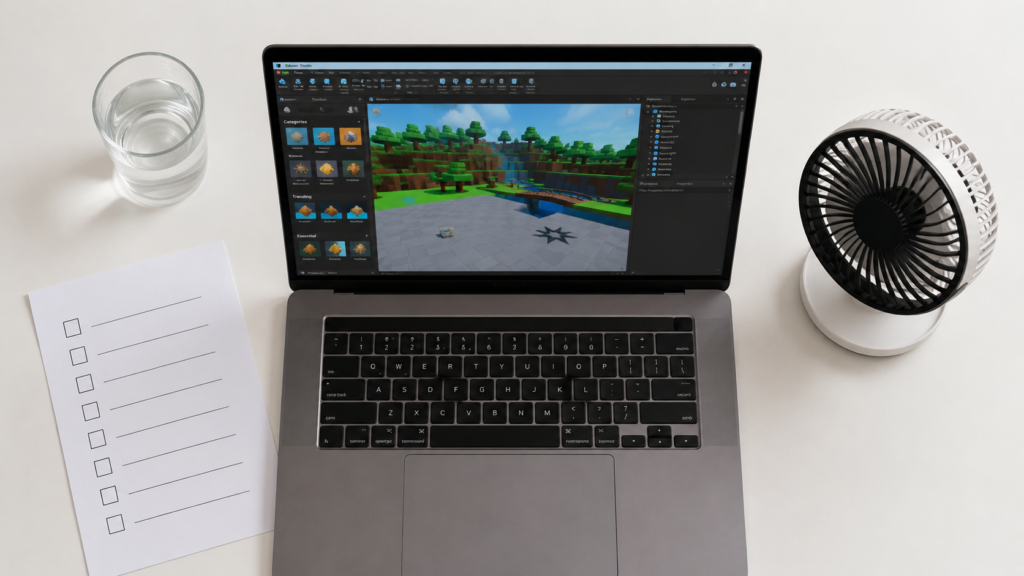
Why Roblox Studio is lagging usually comes down to one or more of these root causes:
Most of these are completely within your control. Let’s go through them one by one.
Hardware is the single biggest factor behind Roblox Studio lag. Here’s what matters most:
| Component | Minimum | Recommended |
|---|---|---|
| RAM | 4 GB | 8 GB or more |
| CPU | Dual-core 1.6 GHz | Quad-core 2.5 GHz+ |
| GPU | Integrated (Intel HD) | Dedicated (NVIDIA/AMD) |
| Storage | HDD (slow) | SSD (fast load times) |
| OS | Windows 10 / macOS 11 | Latest updates installed |
RAM is the most common culprit. Roblox Studio itself can use 1–2 GB. Add Chrome, background apps, and a complex game project — and an 8-year-old laptop with 4 GB RAM will struggle constantly.
Integrated graphics (the GPU built into Intel or AMD chips) are designed for basic display tasks. Roblox Studio’s 3D viewport pushes them hard. A dedicated GPU makes a visible difference.
If upgrading hardware isn’t immediately possible, the fixes in the next section will help your child get the most from what they have. You might also find our guide on free online coding games for kids useful — lighter tools for practising game logic without stressing older hardware.
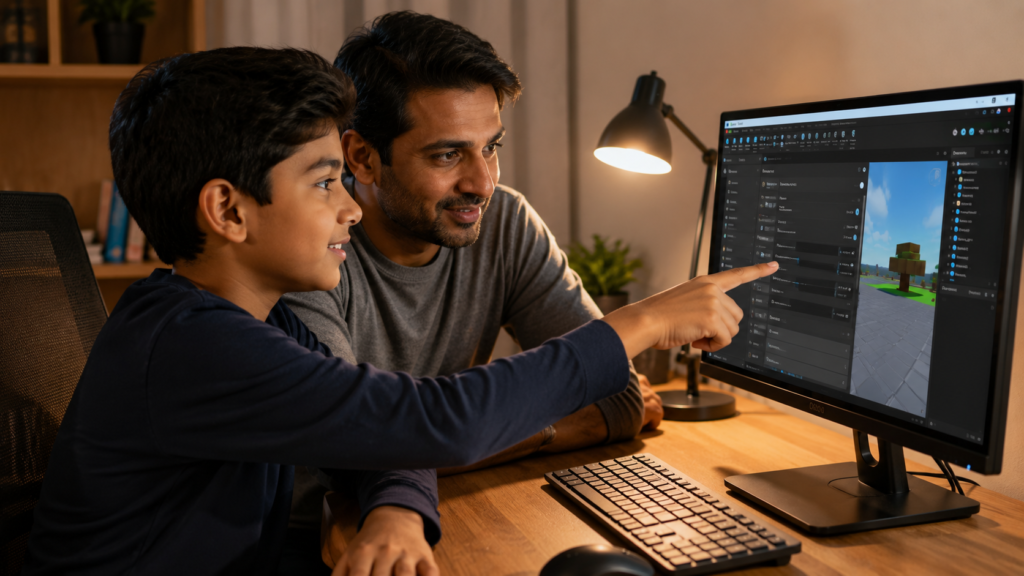
Follow these steps in order. Each one builds on the last.
Step 1: Close background applications Before opening Studio, close Chrome, Discord, Spotify, and any streaming app. Each one competes for RAM and CPU.
Step 2: Lower Roblox Studio graphics settings In Studio → File → Settings → Rendering, reduce Graphics Quality to Level 3 or 4. Your child’s build view will look simpler but perform far better.
Step 3: Update graphics drivers Visit the NVIDIA, AMD, or Intel website and download the latest drivers for your GPU model. Old drivers are a silent performance killer.
Step 4: Free up RAM Open Task Manager (Windows) or Activity Monitor (Mac) and end any process using over 500MB that isn’t essential.
Step 5: Reduce workspace part count In Studio, open the Model tab → select all parts → check the count in Properties. Projects with 5,000+ parts will lag on average hardware. Group and simplify geometry where possible.
Step 6: Optimise scripts This is the skill-building step — see the next section for specifics.
Step 7: Use an Ethernet cable If your child works on Wi-Fi, switching to a wired connection reduces Studio’s cloud-loading lag significantly.
Step 8: Keep Studio updated Roblox pushes performance improvements regularly. Always run the latest version.
Want your child to get hands-on guidance fixing these issues in real projects? Our after-school kids programme pairs them with a mentor who helps them build and optimise games from scratch.
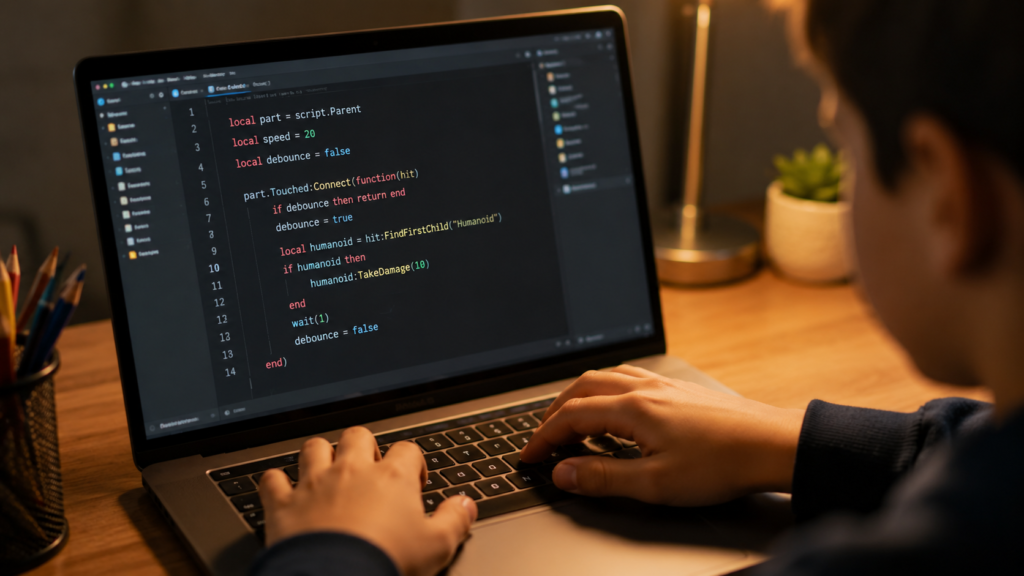
This is where it gets genuinely interesting — and where learning to code makes a real difference.
Roblox Studio uses Lua as its scripting language. Poorly written Lua is one of the most common hidden causes of Studio lag. Here’s what to watch for:
Mistake 1: Running heavy loops every frame Using RunService.RenderStepped or while true do loops to update things that don’t need constant updating. Every frame loop runs 60 times per second — even small inefficiencies compound fast. ✅ Fix: Only run updates when something actually changes. Use events instead of polling.
Mistake 2: Creating parts dynamically without removing them Scripts that Instance.new("Part") repeatedly without cleaning up fill the workspace with hundreds of invisible parts. ✅ Fix: Always Destroy() parts that are no longer needed.
Mistake 3: Using wait() instead of task.wait() The old wait() function is less efficient than the modern task.wait(). This is a simple swap that improves script performance. ✅ Fix: Replace all wait() calls with task.wait().
Mistake 4: Printing excessively in playtests print() statements in loops flood the output window and slow script execution during testing. ✅ Fix: Comment out or remove print statements before running full playtests.
Understanding these patterns is exactly what structured coding education builds. Our Roblox coding course for kids teaches Lua scripting properly — so your child writes clean, efficient code from day one. For deeper programming logic, see our C for kids complete parent guide.
Yes — but perhaps not in the way you’d expect.
Roblox Studio doesn’t just run locally. It constantly communicates with Roblox’s cloud servers to:
If your internet connection is slow or unstable, you’ll see lag specifically when:
For pure building and scripting, internet speed matters less. A stable 10 Mbps connection is more than enough. What kills Studio performance here isn’t speed — it’s packet loss and instability.
A wired Ethernet connection eliminates most network-related Studio lag instantly. It’s one of the easiest wins on this list.
Curious how networks and software interact? Our AI course for kids explores exactly these kinds of real-world systems — a natural next step after Roblox Studio.
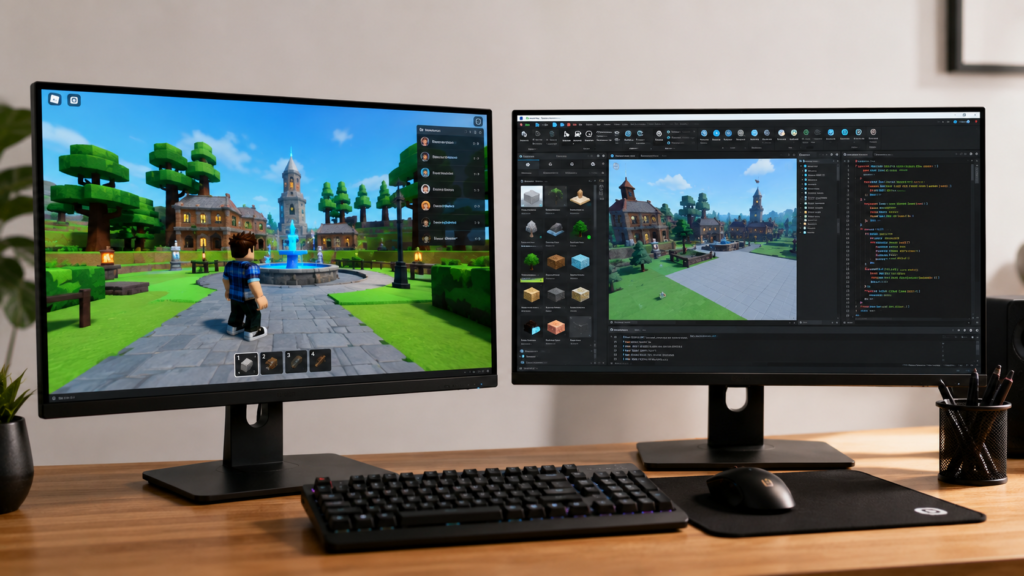
This confuses a lot of parents. Your child’s game runs fine to play — but building it in Studio feels sluggish. Why?
| Feature | Roblox Player | Roblox Studio |
|---|---|---|
| Purpose | Play finished games | Build and test games |
| 3D rendering | Optimised for gameplay | Full editor viewport active |
| Script execution | Player-side only | Server + client + Studio tools |
| Asset loading | Pre-cached | Live from cloud |
| RAM usage | ~500 MB–1 GB | ~1.5 GB–3 GB |
Roblox Studio is essentially running a live game engine plus a professional IDE plus a 3D modelling viewport simultaneously. It’s far more demanding than the player app.
This is why a computer that handles playing Roblox perfectly well can still struggle in Studio — and it’s completely normal. For a full breakdown of what Studio actually is and does, read our beginner’s guide to Roblox Studio for parents.
Here’s what most Roblox tutorials don’t tell you: the difference between a game that runs smoothly and one that lags constantly is almost always coding quality, not hardware.
Professional game developers think about performance from line one. They ask:
These are exactly the habits that structured coding education builds. Children who understand how coding and robotics connect naturally write cleaner, more performance-aware scripts.
At ItsMyBot, we help kids aged 5–15 build these skills properly — through our Roblox coding course for kids, live mentor-led sessions, and our after-school programme that keeps the learning going every week. Kids enrolled in structured after-school coding sessions consistently build faster, more polished games — because they understand the why behind every line of code.
When your child understands why their code is slow, they can fix it themselves. That’s a skill that goes far beyond Roblox — it opens doors to Python, AI, and real software development.
Explore Python for kids as the natural next language after Roblox Lua scripting.
Even capable computers can struggle if the project has too many parts, poorly optimised scripts, or too many background applications running. Close unnecessary apps, reduce workspace part count, and check your Lua scripts for heavy loops. Studio is a full game engine — it demands more than most consumer software. Our Roblox coding course teaches kids to write performance-aware scripts from the start.
Roblox Studio recommends at least 4 GB of RAM, but 8 GB is the practical minimum for comfortable use. Complex projects with many scripts and assets can use 2–3 GB on their own, leaving little room for the operating system and other apps.
Yes — but mainly during asset loading and publishing. For pure building and scripting sessions, a stable 10 Mbps connection is sufficient. Switching from Wi-Fi to a wired Ethernet connection resolves most network-related Studio lag.
In Studio → File → Settings → Rendering, set Graphics Quality to Level 3 or 4. This significantly reduces the rendering load without affecting your child’s ability to build and test their game effectively.
Yes — significantly. Most Studio lag in complex projects comes from inefficient Lua scripts. Children who understand coding logic write cleaner code that uses less CPU and RAM. Our after-school programme builds these habits through weekly mentor-led sessions.
Studio runs a full game engine, a 3D editor viewport, and a script IDE simultaneously. The player app only runs the finished game. Studio’s additional tools require significantly more RAM and CPU. Read our full Roblox Studio guide for parents for the complete breakdown.
Yes. Lower the graphics settings, close background apps, update your GPU drivers, reduce the part count in the workspace, and optimise any Lua scripts. These steps can make a dramatic difference before any hardware upgrade is needed.
Roblox Studio lagging isn’t a mystery — it’s a solvable problem with clear causes. Start with the hardware check, lower graphics settings, close background apps, and update your drivers. Then encourage your child to look at their scripts.
If lag persists, the project itself may need optimisation. That’s not a problem — it’s a learning moment. Understanding why a game runs slowly is one of the most valuable lessons in game development.
The kids who figure this out aren’t just better Roblox builders. They’re thinking like real engineers.
Book a Free Demo and let ItsMyBot help your child build games — and the skills behind them.
Your child doesn’t have to figure this out alone. ItsMyBot’s after-school coding programmes give kids weekly mentor-led sessions where they build real Roblox games, fix real performance problems, and grow into confident coders.
Find a programme near you:
Your child already loves building. Help them build better.
ItsMyBot’s Roblox coding course and after-school programme teach the real skills behind smooth, professional game development — from Lua logic to computational thinking. Personalised to your child’s pace. Parent progress updates included every step of the way.
Book a Free Demo → | Explore After-School Programme →

Online coding, AI, and robotics classes that help kids ages 6–18 build real skills — and confidence — one project at a time.
No commitment · Live class with an expert teacher
© ItsMyBot 2026. All Rights Reserved.