
You’ve heard Scratch is great for kids learning to code. But before you let your child dive in, you want to know: is Scratch actually safe? That’s not an overprotective question — it’s the right one.
Scratch is used by over 100 million children worldwide. MIT has built meaningful protections into the platform. But no online tool is risk-free without a parent who understands what to look for. This guide gives you a clear, honest picture — what Scratch does well, where the real risks are, and exactly how to protect your child.
💡 Quick Facts
- Scratch requires children under 13 to provide a parent’s email address to create an account
- All projects on Scratch are publicly visible by default unless privacy settings are changed
- Scratch has a dedicated moderation team that reviews reported content
- The Scratch community has over 100 million registered users globally
- Children can use Scratch without an account in offline or view-only mode
Scratch is a free, browser-based visual coding platform created by the MIT Media Lab. Children aged 6 and older use it to build interactive stories, games, and animations by snapping colourful code blocks together — no typing required.
What makes Scratch more than a simple tool is its community layer. Children can share their projects, comment on others’ work, and remix projects they love. This community is where parents need to pay attention.
Understanding how Scratch works before your child uses it is the foundation of safe use. You don’t need to become a coding expert — you just need to know what the platform lets children do and see.
For a complete walkthrough of everything Scratch can do, read our Guide to Scratch Coding. And if you’re entirely new to children’s coding, The ABC’s of Coding: Complete Beginner’s Guide for Kids gives both parents and children the perfect starting point.
Yes — with the right settings and parent involvement.
Scratch is one of the most carefully designed children’s coding platforms online. MIT has invested significantly in moderation, age-appropriate design, and clear community guidelines. For most children aged 7–14, it’s a genuinely safe and enriching environment.
That said, it is a public online platform — and public platforms carry inherent risks. Content uploaded by millions of users can’t be perfectly filtered in real time. Inappropriate comments, mature themes in shared projects, and rare instances of stranger contact are documented, though uncommon.
The good news: a few simple settings and habits eliminate most of the risk.
For broader online safety guidance, read how to keep your kids safe online.
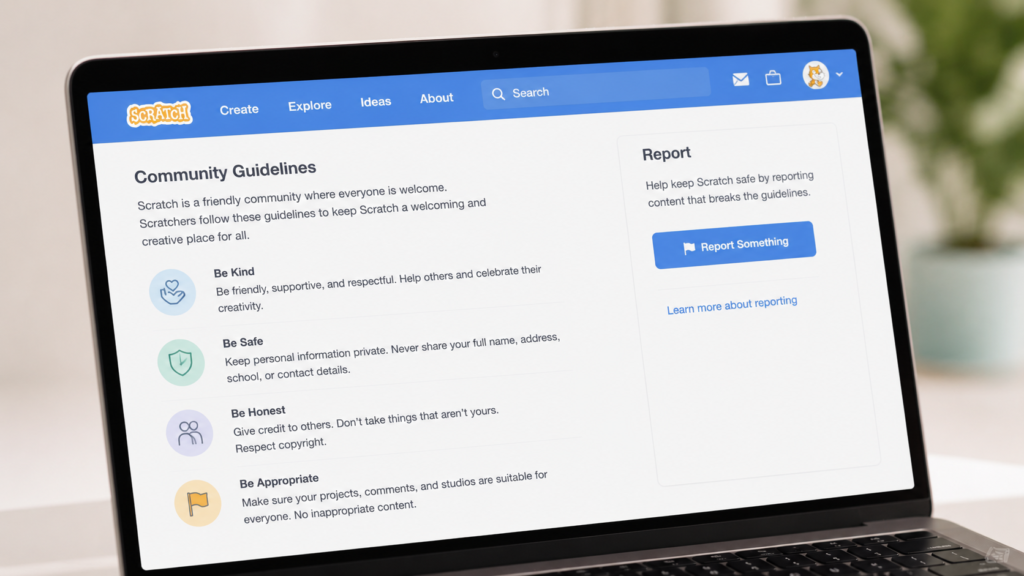
MIT has built several meaningful protections into Scratch:
Age Verification and COPPA Compliance Children under 13 creating a Scratch account must provide a parent’s email address. Scratch sends a verification link and notifies parents when an account is created. This is a legal requirement under COPPA (Children’s Online Privacy Protection Act).
Filtered Language Scratch automatically filters profanity and a range of inappropriate terms from comments, project titles, and descriptions. The filter isn’t perfect, but it catches most common violations.
Community Moderation Scratch has a dedicated moderation team that reviews reported content. Users can report projects, comments, and profiles using a visible “Report” button on every page.
Community Guidelines Scratch’s guidelines explicitly prohibit sharing personal information, harassment, inappropriate content, and spam. Accounts that violate guidelines are warned, suspended, or permanently removed.
Private Sharing Options You can set your child’s projects to “Not Shared” — visible only to people with a direct link, not browsable by the public.
Being honest with you matters more than reassuring you. Here are the genuine risks parents should know about:
Inappropriate content in shared projects Some users upload projects with mature themes, mild violence, or crude humour. These aren’t common, but they exist. Supervision during browsing sessions matters — especially in the early weeks.
Comments from strangers When a project is shared publicly, any registered Scratch user can leave comments. Most are positive — but occasionally children receive unwanted contact or unhelpful remarks that affect their confidence.
Personal information sharing Scratch’s interface doesn’t ask for personal details, but children sometimes include their name, school, location, or age in project descriptions or comments without realising the risk.
Unmoderated studios Scratch allows users to create “studios” — collections of projects. Studios can have open comment sections that are harder to moderate and less frequently reviewed.
Screen time drift Scratch’s community browsing feature is genuinely absorbing. Children can spend hours exploring others’ projects without ever building their own. Setting a structured session goal prevents this.
Step 1: Create the account with your email address When your child registers, use your own email for parental notifications. You’ll receive account activity updates automatically.
Step 2: Set projects to “Not Shared” by default Go to project settings and disable public sharing. Your child can still build freely — they just won’t receive unsolicited comments until you both decide to share.
Step 3: Turn off comments on any shared projects If your child shares a project, disable comments unless they’re seeking feedback from known classmates or peers.
Step 4: Agree on community browsing rules Decide together which parts of Scratch your child can explore independently. Many parents limit browsing to “Featured” and “Top Loved” curated sections, which are more actively moderated.
Step 5: Sit together for the first few sessions Early sessions together help you spot anything concerning and let your child know what to do if they see something upsetting. You don’t need to supervise every session once the rules are clear.
For a step-by-step technical walkthrough, read how to set up Scratch 3.0 for kids in 10 minutes.

Ages 5–7 — Best with full supervision Disable sharing entirely and use Scratch purely as a creative tool. ItsMyBot’s Little Coder programme provides structured, mentor-guided sessions that keep learning safe and focused at this age. See also coding classes for 7-year-olds.
Ages 8–10 — Supervised independence Children at this age can explore Scratch more freely — but keep sharing off and check in on projects regularly. The Junior Coder programme adds expert mentorship so your child builds real skills, not just random projects. See coding classes for 9-year-olds and 10-year-olds.
Ages 11–14 — Guided independence By this age, most children understand online safety well. Allow sharing with comments disabled. Review their projects together regularly and keep communication open. The Senior Coder programme is ideal for children this age who are ready to move beyond Scratch into Python, JavaScript, and real-world projects.
If you’re wondering whether your child is ready to start coding at all, read what age should kids start learning Scratch? and The ABC’s of Coding to understand the full progression.
Stay calm and open. Your response in this moment shapes whether your child comes to you next time.
If your child tells you they saw something upsetting:
If you discover something through your own review:
For additional digital safety guidance, see parental control software recommendations and how to reduce screen time for kids.
| Platform | Age Gating | Moderated Community | Parental Notifications | Offline Mode |
|---|---|---|---|---|
| Scratch | Under 13 requires parent email | Yes | Yes | Yes |
| Code.org | No account needed | Courses only, no community | N/A | Yes |
| Roblox | Parental PIN under 13 | Yes (large scale) | Yes | No |
| Minecraft Education | School accounts only | No public community | Via school | Yes |
| ItsMyBot Live Classes | Parent-enrolled | 1:1 mentor only | Yes — every session | Yes |
Scratch sits in a strong middle ground — more open than educational-only platforms, but more carefully designed than general social platforms. A mentor-guided programme like ItsMyBot sits above all of them in terms of safety, because learning happens entirely within a supervised 1:1 environment.
ItsMyBot Course Pages:
🏁 In summary: Scratch is safe for kids when used with the right account settings, clear family rules, and early parental involvement. MIT has built genuine protections into the platform — but your awareness and presence are the most powerful safeguards of all. A structured, mentor-guided programme like ItsMyBot gives your child the best of both worlds: the creativity of Scratch with the security of a fully supervised learning environment. Start with a free demo →
Book a Free Demo Class → Turn screen time into skill time — in a safe, guided environment.
Yes, with supervision and sharing disabled. Children aged 5–8 benefit most from using Scratch as a pure creative tool — no community browsing, no public sharing. A parent sitting alongside during early sessions makes Scratch completely appropriate for this age group. Read The ABC’s of Coding to understand what safe, structured early coding looks like.
If your child has shared projects with comments enabled, registered users can comment on them. Disabling comments eliminates this risk. Scratch prohibits direct personal messaging between users.
Scratch requires a parent’s email address for children under 13, in compliance with COPPA. The platform sends parental notifications when the account is created but does not actively verify the parent’s identity beyond the email address.
Yes. Children can create and save projects without registering. Without an account, projects aren’t shared publicly and there’s no access to community features — the safest option for younger children.
Scratch is completely free, with no paid tiers, subscriptions, or in-app purchases. It’s funded by MIT and supported by donations and grants.
Report the comment or account using Scratch’s built-in report system, document what happened, and block the user. Contact Scratch’s support team if the behaviour continues. Use the moment to talk openly with your child about online safety.
Code.org is an excellent alternative for ages 4–8 — it’s entirely course-based with no community sharing component. A structured live course like ItsMyBot provides a completely safe, mentor-supervised environment. Read best Scratch alternatives for kids in 2026 for a full comparison. Once your child is ready to move beyond Scratch, explore Python for Kids: Complete Guide or Introduction to Robotics for Kids.
🚀 Want a safer, more structured learning experience?
At ItsMyBot, your child learns to code in live, 1:1 mentor-guided sessions. No unsupervised community browsing. Real skill-building at your child’s own pace. Parent progress updates every step of the way.

Online coding, AI, and robotics classes that help kids ages 6–18 build real skills — and confidence — one project at a time.
No commitment · Live class with an expert teacher
© ItsMyBot 2026. All Rights Reserved.