
October 2026 · 13 min read
What This Guide Covers
Quick Answer
Scratch teaches kids to think like programmers before they learn to type code. Each of its nine block categories builds a different skill: planning, logic, creativity, patience, and problem-solving. Children snap blocks together to make games, stories, and animations. They see results in minutes, so they stay motivated.
9
block categories, each building a different skill
8–16
ages Scratch is designed for (ScratchJr for 5–7)
Free
to use in a browser or the offline app
Quick Facts
Key Insights
Table of Contents
Scratch teaches computational thinking. That means breaking a problem into steps, spotting patterns, and fixing what doesn’t work.
Children drag colorful blocks into a script. The sprite on the stage reacts right away. That instant feedback makes abstract ideas feel real.
For the full beginner overview, read our complete guide to Scratch coding for kids. This post focuses on what your child gains.
Scratch also reflects a learning approach called “projects, passion, peers, and play,” described by MIT Media Lab researcher Mitchel Resnick. (MIT Media Lab)
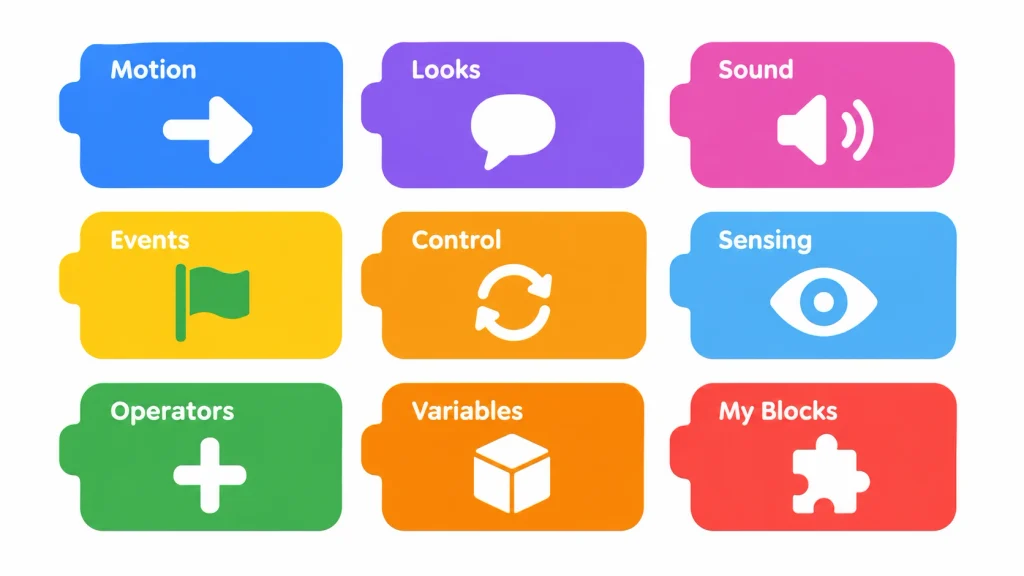
Scratch groups its blocks into nine color-coded categories. Each one builds a different skill. Here’s what each does, what your child learns, and a quick try-it idea.
Want a block-by-block reference? See types of blocks in Scratch. Below, we focus on the benefit of each.
What it does: Moves and turns sprites using move 10 steps, turn 15 degrees, go to x: y:, and glide.
What your child learns:
– The x and y coordinate grid (useful in math class).
– Cause and effect: change the number, change the movement.
– Angles and distance.
Try it: Make a sprite walk a square. Use repeat 4 with move 100 steps and turn 90 degrees.
What it does: Changes costumes, backdrops, size, and speech using say, switch costume, show, and hide.
What your child learns:
– Visual design and animation basics.
– How to tell a story in scenes.
– How a small change (costume) creates a sense of motion.
Try it: Make a character that says hello, then switches costume every half second to look like it’s walking.
What it does: Plays sounds, music, and recordings with start sound and play sound until done.
What your child learns:
– Timing and sequencing.
– How audio changes the feel of a project.
– Using their own voice in a project.
Try it: Add a sound each time a sprite is clicked. Then record your child’s voice for a character.
What it does: Starts scripts with when green flag clicked, when key pressed, when this sprite clicked, and broadcast.
What your child learns:
– Event-driven thinking: “When this happens, do that.”
– How different parts of a program talk to each other.
– The foundation of every game and app.
Try it: Make a sprite change color when the space key is pressed. Learn broadcasting in our guide to using broadcast messages in Scratch.
What it does: Adds wait, repeat, forever, if/else, and clone blocks.
What your child learns:
– Loops: do something again and again without copying blocks.
– Conditions: “If the sprite touches the wall, then bounce.”
– Patience and sequencing.
Try it: Make a sprite bounce around the stage using forever and if on edge, bounce. Cloning confusing? See fixing cloning bugs in Scratch.
What it does: Detects touching, distance, key presses, the mouse, and the timer. It can also ask a question and use the answer.
What your child learns:
– How programs respond to the player.
– Boolean logic (true or false).
– How to design interaction: quizzes, mazes, and games.
Try it: Ask “What’s your name?” and make the sprite greet the player by name. Then build a maze game in Scratch.
What it does: Does math (+, -, ×, ÷), picks random numbers, compares values, joins text, and uses and, or, not.
What your child learns:
– Practical math: it’s useful, not abstract.
– Randomness for games (random positions, random answers).
– Combining conditions: “If the key is pressed and the sprite is on the ground.”
Try it: Make a sprite jump to a random spot every time it’s clicked, using pick random 1 to 10.
What it does: Stores information, such as scores, lives, and timers, and updates it with set and change. Lists store many items at once.
What your child learns:
– How programs remember things.
– Keeping score and tracking progress.
– The idea behind variables in every other language.
Try it: Add a score that goes up by 1 every time the player catches a star. Our clicker game tutorial walks through it.
What it does: Lets children create their own custom blocks, which work like functions.
What your child learns:
– Don’t Repeat Yourself: write once, use many times.
– Breaking big problems into named parts.
– The idea of functions, which comes up again in Python and JavaScript.
Try it: Make a custom block called draw square. Use it three times with different sizes. Explore more with the pen tool guide.
Extensions add extra blocks, such as Pen, Music, Video Sensing, Text to Speech, and Translate. Some connect to hardware such as micro:bit and LEGO. They let children draw, compose, and connect Scratch to the real world. Read our full list in what are Scratch extensions.
| Category | Color | Main skill | Example project |
|---|---|---|---|
| Motion | Blue | Spatial thinking, coordinates | Walking character |
| Looks | Purple | Creativity, storytelling | Talking animal |
| Sound | Pink | Attention to detail, timing | Music player |
| Events | Yellow | Cause and effect | Press-key reactions |
| Control | Orange | Loops, logic, patience | Bouncing ball |
| Sensing | Light blue | Interaction design | Maze game |
| Operators | Green | Math, randomness | Dice roller |
| Variables | Dark orange | Memory, tracking | Score counter |
| My Blocks | Red | Organization, reuse | Custom shape drawer |
See which skill your child shines at
A live ItsMyBot mentor will guide your child through a real project in a free trial class.
Here are the benefits parents notice most.
Scratch has an online community where children share projects and remix each other’s work. They learn to give credit, accept feedback, and improve ideas together. Pair a child with a sibling or friend to build one project and take turns at the keyboard.
Ask your child to keep their account private and review comments with you. See is Scratch safe for kids.
The habits carry into school and life.
For a wider look at early learning, read the benefits of coding for elementary kids and is coding really helpful for kids.
Children plan characters, scenes, and a beginning, middle, and end. They then use Looks and Events blocks to tell the story on screen. Writing and coding grow together.
A script that doesn’t work yet is a normal part of coding. Children learn to pause, test one thing, and try again. Many parents notice this patience carries into homework.
Coordinates, angles, sequences, and variables become tools for a game. A child who needs turn 90 degrees to draw a square understands angles faster.
Good projects follow a simple cycle:
Building a project takes sustained attention. Children stay with one goal for a full session. Short, regular sessions work best. Read our guide to healthier screen time for kids.
| Scratch | Code.org | Python | Roblox Studio | |
|---|---|---|---|---|
| Coding style | Block-based | Block-based, guided | Text-based | Text-based (Lua) |
| Best ages | 8–16 | 5–14 | 10+ | 8+ |
| Creative freedom | Very high | Medium (guided) | High | High |
| Typing required | No | No | Yes | Yes |
| Best for | First projects, games, stories | Structured lessons | Real-world coding, AI | Making games on Roblox |
| Learn more | Scratch course | Scratch vs Code.org | Python course | Roblox course |
Which is best? Scratch is the strongest first step for most children aged 8–12. Move to Python or Roblox when your child wants more control. More comparisons: Scratch vs Python, Scratch vs Blockly, and best Scratch alternatives.
Curious how block coding compares with typing code? Read block-based vs text-based coding.
Projects make the benefits visible. Start small and let your child add ideas.
| Week | Project | Block categories used | Skill gained |
|---|---|---|---|
| 1 | Talking character | Events, Looks, Sound | Cause and effect |
| 2 | Bouncing ball | Motion, Control, Sensing | Loops and conditions |
| 3 | Catch-the-star game | Variables, Operators, Sensing | Scoring and randomness |
| 4 | Short story animation | Looks, Events, Sound, Control | Planning and sequencing |
More ideas: Scratch projects for kids, best Scratch games, and how to make an animation in Scratch.
📷 Inline Image 2 — Replace With Your Uploaded Image
Image Prompt: Photograph taken with a Sony A7 IV, 35mm f/1.8 lens, warm home lighting. A parent and an 8-year-old sit on a sofa with a laptop showing a colorful Scratch catch-the-star game. The child points at the screen, the parent laughs. Candid, natural, no text overlays, 16:9.
Alt Text: Parent and child laughing while testing a Scratch game together, Scratch coding benefits for kids
You don’t need to code. Try these:
New to setup? Follow set up Scratch 3.0 in 10 minutes.
Parent tip: use the Backpack. Scratch’s Backpack lets your child save sprites, sounds, and scripts and reuse them in new projects. It saves time and encourages building on earlier work. Learn how in how to backpack sprites on Scratch.
❌ Mistake 1: Expecting a perfect game right away.
First projects are simple. That’s normal.
✅ Fix: Celebrate each working feature.
❌ Mistake 2: Fixing the bug for them.
Debugging is the learning.
✅ Fix: Give hints: “Which block runs first?”
❌ Mistake 3: Treating it only as screen time.
Building is different from watching.
✅ Fix: Ask what they made and how it works.
❌ Mistake 4: Staying on Scratch forever.
Some children are ready for more.
✅ Fix: Watch for the signs below.
❌ Mistake 5: Starting too young.
Children under 7 may find the full Scratch editor frustrating.
✅ Fix: Try ScratchJr first. See the best age to start coding.
Look for these signs:
Next steps: read from Scratch to Python and explore ItsMyBot’s Junior Coder path for ages 7–12. Younger beginners can start in Little Coder. Teens can move on to the Senior Coder path.
Not sure what fits your child? Use our guide to choosing the right coding course.
Key Takeaways
Not sure where to begin? Book a free trial class and let a mentor point the way.
Ready to turn screen time into skill time? Book a free trial class and let a live mentor guide your child’s first Scratch project.
What are the benefits of Scratch coding for kids?
Scratch builds problem-solving, logical thinking, creativity, and persistence. Children plan, test, and fix their own games and stories. They also practice math through coordinates and variables. Skills such as loops and conditions carry over to Python and JavaScript.
What age is best for learning Scratch?
Scratch works best for ages 8–16. Children aged 5–7 can start with ScratchJr, a simpler tablet app. Some 7-year-olds do well with Scratch when a mentor helps. Reading and basic typing make it easier.
Is Scratch good for kids who want to learn real coding?
Yes. Scratch teaches the same ideas as text languages: loops, conditions, variables, events, and functions. Children then learn the typing and syntax in Python or JavaScript. Most find the move easier after Scratch.
What are the 9 categories of blocks in Scratch?
The nine categories are Motion, Looks, Sound, Events, Control, Sensing, Operators, Variables, and My Blocks. Each color-coded group builds a different skill, such as spatial thinking, logic, or memory. Extensions add extra blocks such as Pen and Music.
How long does it take for a child to learn Scratch?
Most children make a simple animation or game in their first few sessions. Feeling confident often takes two to three months of regular practice. Your child’s age, weekly time, and mentor support all affect the pace.
Is Scratch free?
Yes. Scratch is free to use in a browser or in the offline app. Your child can create an account to save and share projects. Check scratch.mit.edu for current account rules.
Does Scratch help with math?
Yes. Children use coordinates, angles, and numbers in real projects. They apply operators, random numbers, and variables while building games. That makes math feel useful instead of abstract.
Should my child learn Scratch or Python first?
Scratch is usually the better first step for ages 8–12. It removes typing and syntax errors, so children focus on logic. Teens with strong typing and interest in AI may start with Python. Many children do both.
Is Scratch safe for children?
Scratch is moderated and designed for young users, but parents should still guide online use. Keep accounts private, avoid sharing personal details, and review comments together. Read our Scratch safety guide.
How can parents help if they don’t know coding?
Ask questions such as “What does this block do?” and ask your child to demo the project. Praise effort and encourage remixing. A live mentor can add expert feedback when your child is stuck.

Online coding, AI, and robotics classes that help kids ages 5–16 build real skills — and confidence — one project at a time.
No commitment · Live class with an expert teacher
© ItsMyBot 2026. All Rights Reserved.