
Reading Time: 12 mins

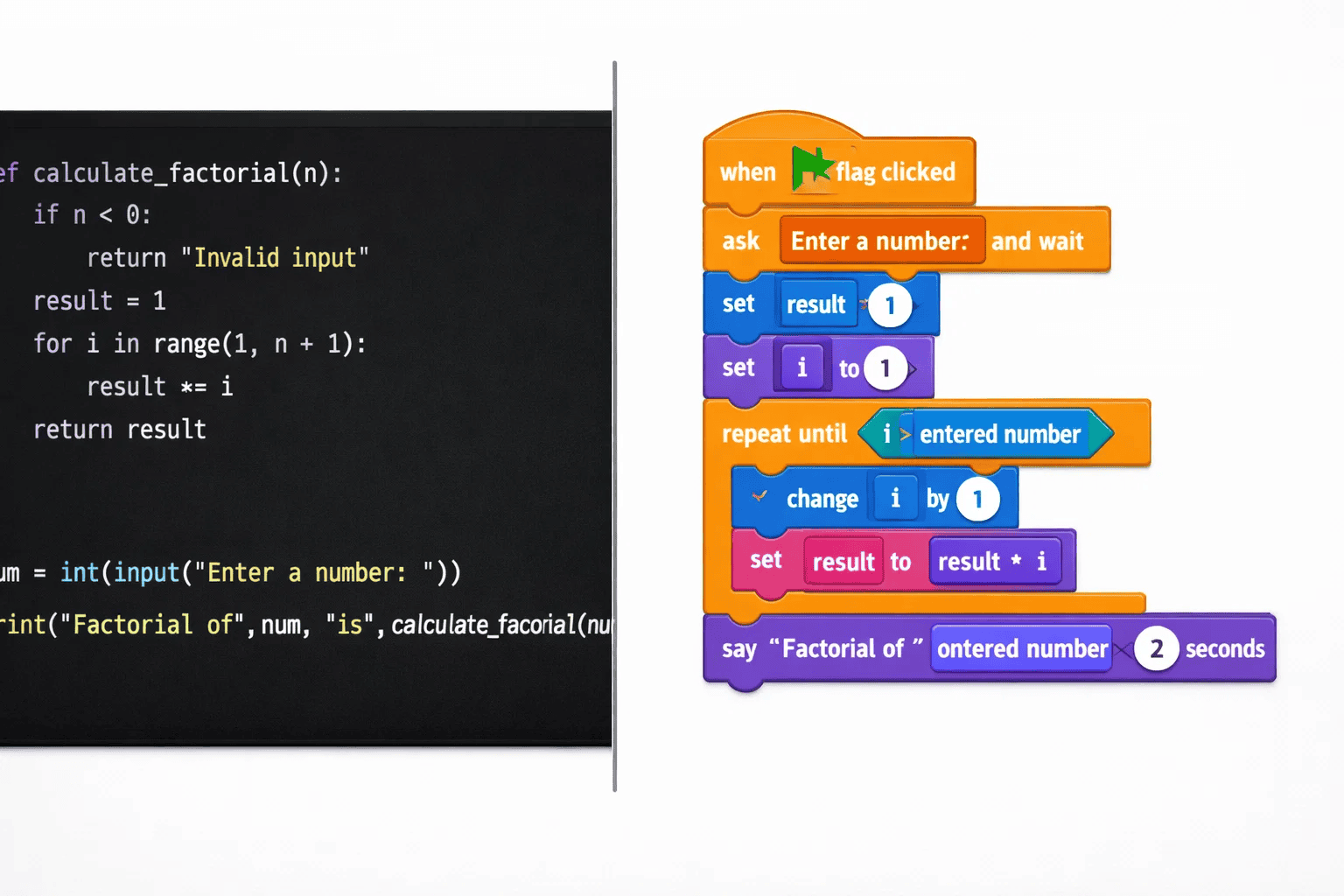
Scratch transforms screen time into skill time. Created by MIT, this visual programming language lets kids build interactive stories, games, and animations using colorful code blocks instead of complex text.
Your child doesn’t need to memorize syntax or worry about typing errors. They simply drag and drop blocks to create amazing projects while learning computational thinking, problem-solving, and creativity.
Why parents trust Scratch:
Before diving into projects, make sure you understand the system requirements for Scratch to ensure smooth performance.

Perfect for kids taking their first steps into coding. These projects introduce fundamental concepts through play.
Skills Learned: Basic motion, costume changes, event handling
Build Time: 15-20 minutes
Your child creates a character that dances when you click it. This project introduces the green flag, motion blocks, and costume switching.
Steps to Create:
Kids love seeing their creations come to life instantly. This builds confidence and excitement for more complex projects.
Skills Learned: Backdrop changes, broadcasts, sound integration
Build Time: 20-25 minutes
Create a personalized card that changes scenes and plays music. Perfect for birthdays or holidays.
Your child learns to coordinate multiple sprites and time events. They’ll understand how different parts of code work together.
Key Features:
For more creative animation ideas, explore our guide on how to make animation in Scratch.
Skills Learned: Sequencing, timing, dialogue
Build Time: 25-30 minutes
Kids create an interactive story where characters talk and move across different backgrounds.
Learning Outcomes:
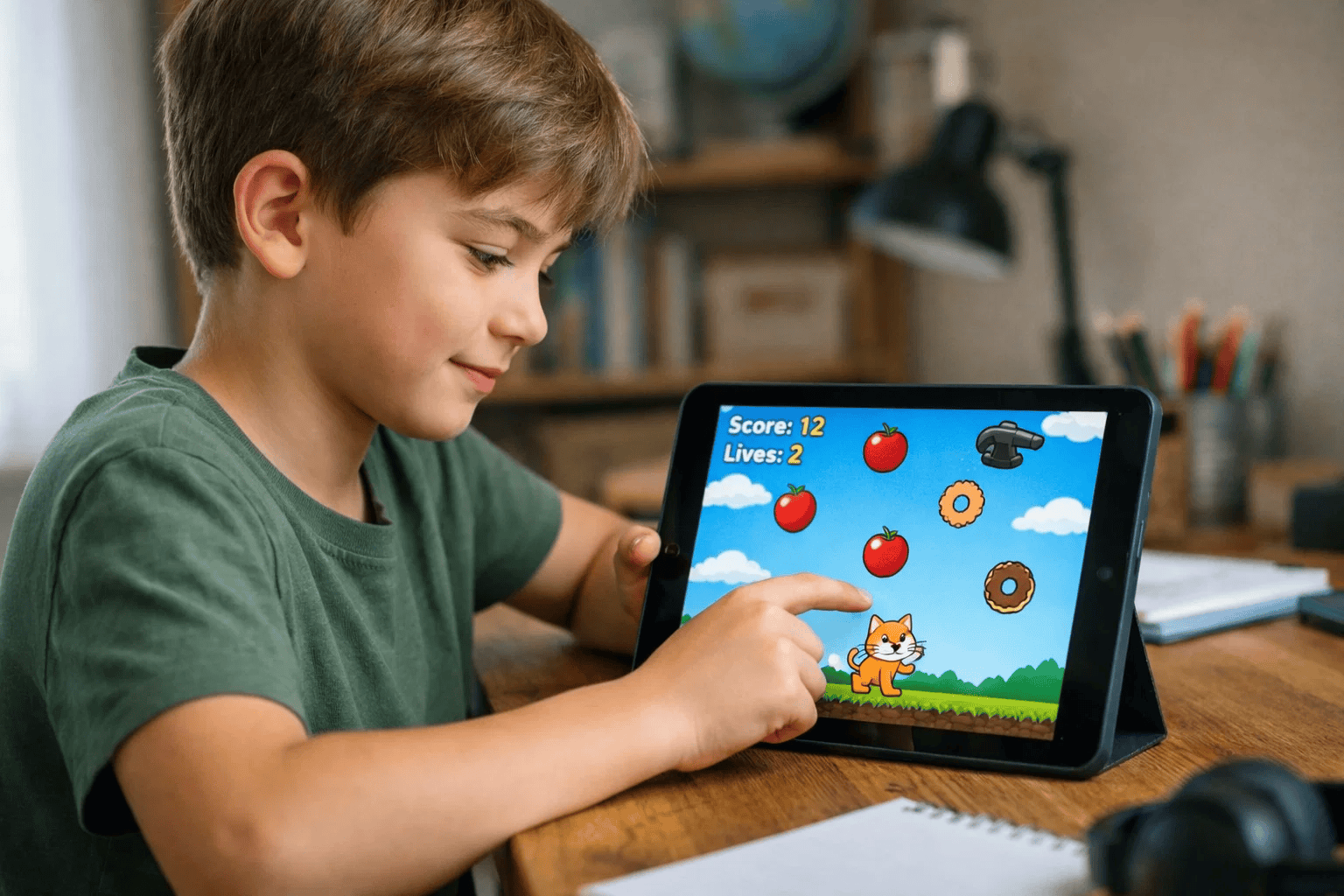
These projects challenge kids to think logically while building genuinely fun games and tools.
Skills Learned: Random number generation, score tracking, collision detection
Build Time: 45-60 minutes
Players control a basket to catch falling fruit while avoiding bombs. Score increases with each catch.
Technical Concepts:
Skills Learned: Variables, conditionals, user input, data storage
Build Time: 50-60 minutes
Create an interactive quiz with multiple questions, score tracking, and feedback messages.
Programming Elements:
Our complete guide to debugging in Scratch helps kids troubleshoot issues when building complex projects.
Skills Learned: Keyboard controls, boundary detection, level design
Build Time: 60-75 minutes
Design mazes where players navigate using arrow keys while avoiding walls. Each level increases difficulty.
Key Learning:
Learn more about creating engaging maze games in our detailed maze game in Scratch tutorial.
Skills Learned: User interface design, sound manipulation, playlists
Build Time: 55-65 minutes
Build a functional music player with play, pause, stop, and playlist features.
Features to Implement:
Discover step-by-step instructions in our music player in Scratch guide.
Skills Learned: Variables, operators, upgrade systems
Build Time: 65-75 minutes
Create an addictive clicker game where each click earns points to buy upgrades that generate automatic points.
Game Mechanics:
Check our comprehensive clicker game tutorial for detailed implementation.

These sophisticated projects introduce professional programming concepts while keeping the fun intact.
Skills Learned: Arrays (lists), clone management, complex collision, game loops
Build Time: 90-120 minutes
Build the classic Snake game where the snake grows longer with each food item eaten.
Advanced Concepts:
Follow our detailed Snake game coding tutorial for complete implementation steps.
Skills Learned: Physics simulation, gravity, jump mechanics, scrolling backgrounds
Build Time: 100-130 minutes
Create a side-scrolling platformer with realistic jump physics, moving platforms, and collectible items.
Physics Implementation:
Skills Learned: Pen extension, color selection, brush sizes, save/clear functions
Build Time: 85-110 minutes
Build a functional drawing app with multiple brush sizes, colors, and tools like eraser and fill.
Tool Features:
Learn about Scratch extensions to enhance your projects with additional capabilities.
Skills Learned: Two-player controls, ball physics, scoring system
Build Time: 95-120 minutes
Classic Pong game where two players compete using different keyboard controls.
Game Features:
Skills Learned: Random effects, layering, tweening, atmospheric effects
Build Time: 80-100 minutes
Create realistic weather effects including rain, snow, lightning, and wind.
Visual Effects:
Explore advanced tweening techniques to make animations smoother and more professional.
Skills Learned: Turn-based logic, health bars, attack calculations, enemy AI
Build Time: 120-150 minutes
Develop a role-playing game battle system with multiple characters, attacks, and strategic elements.
System Components:
Skills Learned: Economic systems, inventory management, purchase validation
Build Time: 110-140 minutes
Build a virtual shop where players earn currency and purchase items with various costs.
Shop Features:
For detailed instructions, see our custom currency label guide.
Starting your coding journey should feel exciting, not overwhelming. Here’s how to set your child up for success.
Visit scratch.mit.edu and click “Join Scratch.” Choose a unique username and secure password. Verify the email address to enable sharing features.
Pro tip: Use a parent-managed email for kids under 13 to maintain supervision while allowing creative freedom.
Spend 10 minutes clicking around without any goal. Let your child:
Fear of making mistakes prevents learning. Reassure your child that nothing can break – they can always undo or start fresh.
Scratch offers built-in tutorials under the “Tutorials” menu. Begin with “Getting Started” and “Animate Your Name.”
These 5-minute guided projects introduce core concepts without frustration. Your child sees immediate results, building confidence.
Pick from our beginner list based on your child’s interests:
Interest drives engagement. Don’t force a project that doesn’t excite them.
Sit alongside your child for their first 2-3 projects. You don’t need coding experience – learn together.
Benefits of co-coding:
If you’re deciding between different learning paths, read our comparison of Scratch vs Code.org to make an informed choice.
Even experienced young coders make these errors. Knowing them helps your child progress faster.
The Problem: Kids jump straight into coding without planning what their project should do.
Why It’s Problematic: They hit roadblocks halfway through, get frustrated, and abandon projects. Planning prevents wasted effort and confusion.
Correct Approach: Spend 5 minutes sketching the project flow. Ask your child:
The Problem: Writing large amounts of code before testing results in hard-to-find bugs.
Why It’s Problematic: When multiple things break simultaneously, identifying the source becomes overwhelming. Frustration kills motivation.
Correct Approach: Test after adding every 3-5 blocks. Click the green flag, check if it works as expected, then continue. Small tests = easy fixes.
The Problem: Creating messy code with no comments or logical grouping makes projects impossible to understand later.
Why It’s Problematic: Returning to improve the project becomes difficult. Other coders can’t understand or help with the code.
Correct Approach:
The Problem: Following tutorials by blindly copying each step without comprehending why it works.
Why It’s Problematic: Kids can’t apply learning to new projects. They become dependent on tutorials instead of developing problem-solving skills.
Correct Approach:
Learn effective debugging techniques to fix errors quickly and build resilience.
The Problem: Encountering the first challenge and immediately declaring “I can’t do this.”
Why It’s Problematic: Programming requires persistence through problems. Quitting early prevents skill development and confidence building.
Correct Approach:
The Problem: Spending hours on a project without saving, then losing everything to a browser crash.
Why It’s Problematic: Losing work creates devastating frustration. Kids may give up on coding entirely after this experience.
Correct Approach:
Your support makes the difference between a child who codes occasionally and one who develops genuine skills.
Set aside 30-60 minutes daily or 3 times weekly specifically for coding practice. Consistency builds skills faster than sporadic long sessions.
Make it routine:
Praise effort and problem-solving, not just completed projects. Say:
Avoid:
You don’t need programming experience to support your child. Learn alongside them.
Ways to engage:
If your child loves:
Interest-driven projects increase engagement by 300% compared to generic tutorials.
Scratch projects take time. A beginner might need 3 hours for a simple game. Advanced projects require 10-20 hours spread over weeks.
Age-appropriate time frames:
Pushing beyond these durations causes fatigue and reduced learning.
Scratch’s community thrives on remixing existing projects. This is learning, not cheating.
Benefits of remixing:
When your child is ready to transition beyond Scratch, explore moving from Scratch to Python for the next step.
Good tools enhance the learning experience without breaking the budget.
Minimum requirements:
Check our complete equipment guide for detailed recommendations.
Children as young as 5 can begin with simple Scratch projects. The visual interface eliminates typing barriers. Ages 5-8 excel at animations, ages 9-12 enjoy games, and ages 13-15 tackle complex systems. Start where your child’s interest lies – an excited 7-year-old may surpass a reluctant 12-year-old.
Yes, Scratch teaches fundamental concepts that transfer to professional languages. Variables, loops, conditionals, and functions work identically in Python, JavaScript, and Java. The difference is syntax – Scratch uses visual blocks while professional languages use text. The logic is identical, and many developers started with block-based platforms.
No, Scratch is completely free with no hidden costs. You need a device with internet, a web browser, and an optional free account. Optional purchases that enhance experience include an external mouse, headphones for testing, and robotics kits that connect to Scratch.
Scratch prioritizes creativity over technical syntax. Kids see visual results immediately without memorizing commands. Compared to Code.org, Scratch offers unlimited creative freedom while Code.org provides structured lessons. Block-based platforms like Scratch reduce frustration while teaching identical concepts.
You don’t need coding knowledge to support effectively. Sit with them during projects, ask what blocks do, celebrate problem-solving, and search forums together when stuck. Your genuine interest matters more than technical expertise. Learning together models lifelong growth and strengthens your bond.
Yes, Scratch provides safe sharing with community moderation. All projects are reviewed before appearing publicly. Safety features include comment moderation, inappropriate content removal, personal information blocking, and parent supervision for children under 13. Teach your child never to include real names or locations in projects.
The natural progression leads to Python or JavaScript. Skills transfer directly to text-based languages. Many kids explore app development with MIT App Inventor, game development with Unity, or physical computing with Arduino. The timing varies – some transition after 6 months, others enjoy Scratch for years. Read our guide on choosing the right next step.
Scratch projects turn curiosity into confidence and screen time into skill time. These 15 projects create a clear pathway from simple animations to complex games that kids genuinely enjoy building.
Your child doesn’t need to complete all 15 projects. Pick ones that match their interests and current skill level. The goal isn’t finishing a list – it’s developing computational thinking, creativity, and persistence that serve them in every future challenge.
These projects plant seeds for future careers in game development, app creation, web design, data science, and countless other fields. More importantly, they teach your child that technology isn’t magic – it’s a tool they can control and create with.
Start with project #1 today. Watch your child’s eyes light up when their dancing sprite moves for the first time. That moment transforms how they see technology forever.
Want structured guidance for your child’s coding journey? Explore our comprehensive coding courses designed specifically for kids that build on Scratch fundamentals.
For more tutorials and resources on Scratch game development, visit ItsMyBot – Scratch Tutorials.
Ready to start building? Open Scratch today and watch your child’s coding journey begin!