
Table of Contents
- Does Scratch Work on a Chromebook?
- Method 1 — Use Scratch Directly in Chrome (Recommended)
- Method 2 — Install the Scratch Android App on Chromebook
- Method 3 — Install the Scratch Offline Editor via Linux (Advanced)
- Which Method Should Your Child Use?
- What Can Your Child Create With Scratch on a Chromebook?
- Troubleshooting: Scratch Not Working on Your Chromebook?
- From Scratch to Real Skills — What’s Next for Your Child?
- Frequently Asked Questions
Your child’s school issued a Chromebook. They want to learn coding with Scratch. And now you’re wondering whether Scratch actually works on a Chromebook — and which method is best.
Good news: you can absolutely install Scratch on a Chromebook and it works brilliantly. This guide covers all three methods — browser, Android app, and Linux — so you can choose what works best for your family.
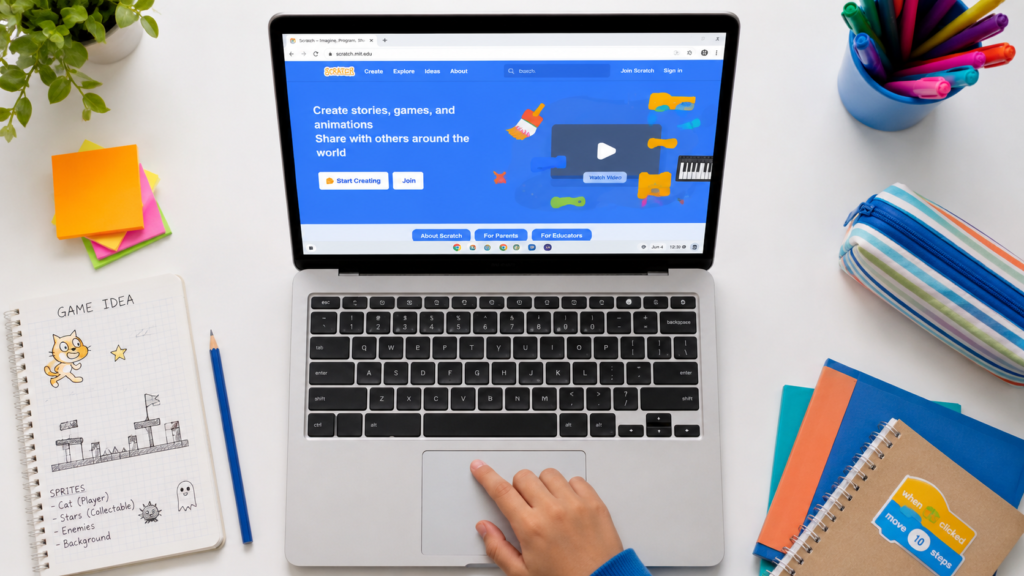
Yes — and it works well. Scratch 3.0 was rebuilt using modern web technology, which means it runs smoothly in Chrome (Chromebook’s built-in browser) without any installation at all.
Chromebooks are increasingly popular in schools because they’re affordable, fast to start up, and low-maintenance. If your child uses one at school or home, Scratch is a natural first coding tool — and ItsMyBot’s Little Coder programme is designed to complement exactly this kind of device.
Quick Facts:
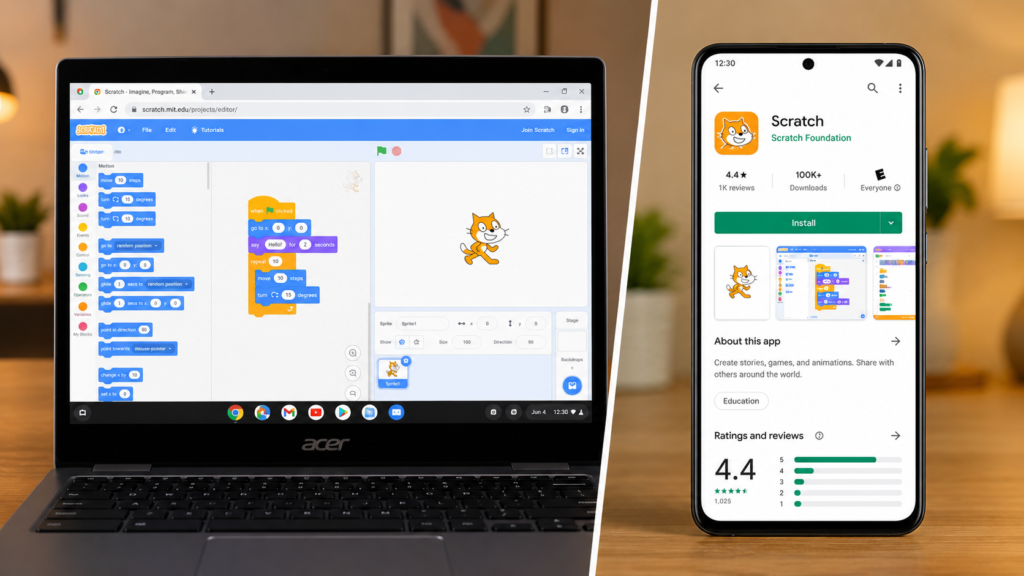
This is the simplest way and works on every Chromebook. No download required.
Step 1: Open Chrome on your Chromebook. Step 2: Go to scratch.mit.edu. Step 3: Click Start Creating or sign in with a free Scratch account. Step 4: Your child can start building immediately.
This method uses the full Scratch 3.0 editor. It saves projects to your Scratch account automatically and gives your child access to the entire Scratch community.
The only limitation is that it requires an internet connection. For most school or home setups, this isn’t an issue — Chrome is fast and Scratch loads quickly.
Parent tip: Bookmark scratch.mit.edu in Chrome for easy access. Better yet, add it to the Chromebook’s shelf (taskbar) as a pinned site.
Many modern Chromebooks support Android apps through the Google Play Store. This installs a version of Scratch that works offline.
Check if your Chromebook supports Android apps: Go to Settings → Apps → Google Play Store. If you see this option, you’re good to go.
Step 1: Open the Google Play Store on your Chromebook. Step 2: Search for Scratch. Step 3: Find the official Scratch app by MIT Media Lab and tap Install. Step 4: Open the app from your launcher.
The Android version of Scratch has most of the same features as the desktop editor. It works offline and is well-suited for Chromebooks with touchscreens.
Note: Older Chromebooks (manufactured before 2017) may not support Android apps. If the Play Store isn’t available in Settings, use Method 1 instead.
This method is for families who want the full desktop Scratch experience on their Chromebook, identical to the Windows or Mac version.
Step 1: Enable Linux on Chromebook Go to Settings → Advanced → Developers → Linux development environment. Click Turn on and follow the setup prompts.
Step 2: Open the Linux Terminal Once Linux is set up, open the Terminal app from your Chromebook launcher.
Step 3: Download Scratch Visit scratch.mit.edu/download and download the Linux version (.deb file).
Step 4: Install the File In the Terminal, run:
sudo dpkg -i scratch-desktop_x.x.x_amd64.debReplace x.x.x with the version number in your downloaded file.
Step 5: Launch Scratch Find Scratch in your Linux apps folder and open it.
This method takes 10–15 minutes but gives the most stable offline experience.
Choosing the right method depends on your situation:
| Situation | Best Method |
|---|---|
| School Chromebook, stable Wi-Fi | Method 1 — Browser |
| Home Chromebook, wants offline access | Method 2 — Android App |
| Older Chromebook without Play Store | Method 1 — Browser |
| Tech-confident family, wants full desktop app | Method 3 — Linux |
| Chromebook with touchscreen | Method 2 — Android App |
For most families, Method 1 is the best starting point. It requires nothing, works everywhere, and gives the full Scratch experience.
Everything. Scratch on Chromebook has no creative limitations. Your child can build:
Scratch is our recommended starting platform for children in our Junior Coder and Little Coder programmes. Once your child is confident with Scratch on their Chromebook, they’re ready to move into structured coding with a mentor. Explore our best coding classes for 9-year-olds or best coding classes for 12-year-olds to find the right fit.
Scratch won’t load in Chrome Clear your browser cache: go to Chrome Settings → Privacy and Security → Clear Browsing Data. Select Cached images and files and clear.
Android app crashes on launch Try uninstalling and reinstalling from the Play Store. Make sure your Chromebook’s Chrome OS is up to date (Settings → About Chrome OS → Check for updates).
Linux installation gives an error Make sure you downloaded the correct .deb file for your processor type (amd64 for most Chromebooks). Run sudo apt update && sudo apt upgrade in Terminal before installing.
Scratch is slow on an older Chromebook Use the browser-based version and close all other Chrome tabs. Scratch 3.0 is lightweight, but running many apps simultaneously on older hardware slows things down.
Scratch on Chromebook is a great start. But it’s just the beginning of your child’s coding journey.
Once they’ve built a few projects and understand how logic, loops, and conditionals work in Scratch, they’re ready for Python. Our guide on Python for kids shows exactly how to make that transition — and why it’s less intimidating than most parents think.
This summer, consider our Summer Coding Camp for Kids 2026 — live online classes that work on any device, including Chromebooks. Your child builds real projects, works with a personal mentor, and develops skills that last far beyond the summer.
Yes — all methods to use Scratch on a Chromebook are completely free. The browser-based version needs no installation. The Android app is free on the Play Store. The Linux offline editor is also free to download from scratch.mit.edu.
Yes, with the right method. The Android app (Method 2) and the Linux offline editor (Method 3) both work without internet. The browser version requires a connection. For most school use, the browser version is sufficient.
Most Chromebooks released from 2017 onwards support Android apps through the Google Play Store. Go to Settings → Apps → Google Play Store to check. If the option isn’t there, your Chromebook doesn’t support it — use the browser version instead.
It’s very similar. The core editor, blocks, sprites, and sound tools are all present. Some advanced extensions may not be available in the Android version. For most children getting started, the Android version has everything they need.
The browser-based method (Method 1) is best for school Chromebooks. It doesn’t require any installation, works within school network restrictions, and runs the full Scratch 3.0 editor at scratch.mit.edu.
Scratch is ideal for children aged 7 and above. Younger children (5–6) are better suited to ScratchJr on a tablet. For 7-year-olds ready to start, our best coding classes for 7-year-olds are a great structured complement to Scratch.
Scratch on Chromebook gives your child a brilliant creative sandbox. Pairing it with guided mentorship transforms that creativity into genuine, future-ready skills.
ItsMyBot’s personalised online coding courses are device-agnostic — they work beautifully on Chromebooks. Every class adapts to your child’s level. Every milestone gets reported to you.

Online coding, AI, and robotics classes that help kids ages 6–18 build real skills — and confidence — one project at a time.
No commitment · Live class with an expert teacher
© ItsMyBot 2026. All Rights Reserved.