
Your child wants to build their first game. You’ve heard about Scratch — but finding the right download for Windows 11 feels more complicated than it should.
That frustration is real. The official website isn’t always clear, and the last thing you want is to install the wrong version or something unsafe. This guide walks you through exactly how to download Scratch 3.0 on Windows 11 — step by step, in under 10 minutes.
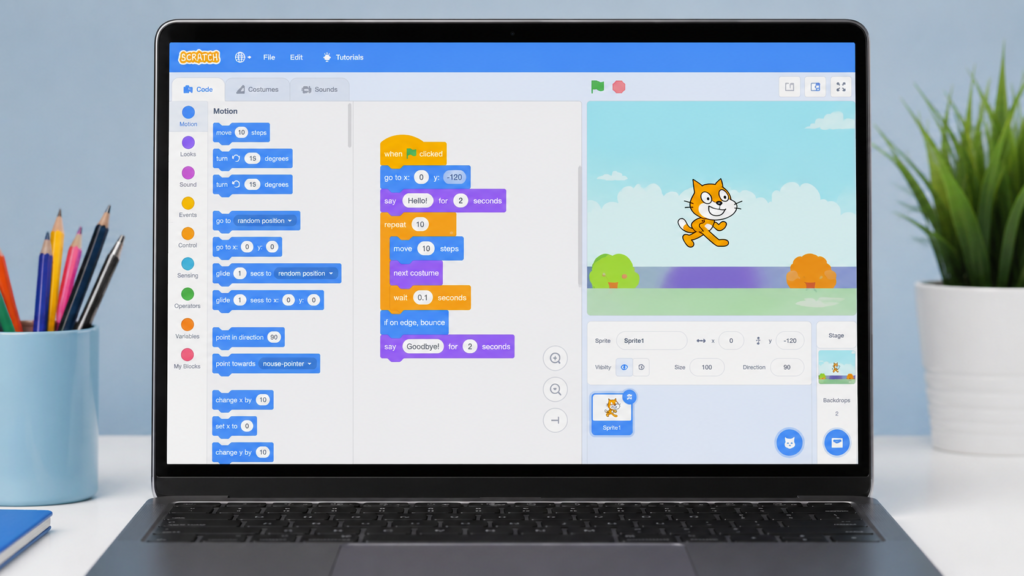
Scratch 3.0 is the latest version of MIT’s free visual coding platform — built specifically for children aged 8 to 16. It lets kids create animated stories, games, and interactive projects using colourful drag-and-drop code blocks.
It’s not just play. Scratch teaches logical thinking, sequencing, and problem-solving — the same foundations your child will use in Python, JavaScript, or any future coding language. At ItsMyBot, we use Scratch as the starting point for our Little Coder programme — because it turns screen time into genuine skill time.
Quick Facts:
This is worth knowing before you do anything. Scratch 3.0 works in two ways:
Option 1 — Use It Online (No Download) Visit scratch.mit.edu in Chrome or Edge. Sign up for a free account. Your child can start coding immediately — no installation needed.
Option 2 — Download the Scratch Offline Editor This is the right choice if:
For most families, the online version works perfectly. But if your child plans to code regularly, the offline app is worth installing.

Follow these steps exactly. The whole process takes less than 5 minutes.
Step 1: Go to the Official Scratch Website Open your browser and go to scratch.mit.edu/download. This is the only safe, official source. Avoid third-party download sites.
Step 2: Choose Your Operating System Scroll down to the “Download the App” section. Click Windows. You’ll see a button labelled Scratch app for Windows. Click it.
Step 3: Run the Installer Your browser will download a .exe file. Once it finishes, open your Downloads folder and double-click the file. Click Yes on the Windows security prompt — this is normal.
Step 4: Complete the Installation The installer is quick — under a minute. When it finishes, you’ll see the Scratch icon on your desktop. Click it to open.
Step 5: Start Creating Scratch 3.0 opens to a fresh project editor. Your child can start dragging blocks, adding sprites, and building their first project right away.
Tip for parents: You don’t need to create an account to use the offline editor. But creating a free account at scratch.mit.edu lets your child save and share projects online.
Yes — with one condition. Scratch 3.0 requires Windows 10 or later, so it works natively on Windows 11. Both 32-bit and 64-bit systems are supported.
The minimum requirements are low:
If your child’s laptop is a school device running Windows 11 in S Mode, you may need to switch out of S Mode first — or simply use the browser-based version instead.
This is where it gets exciting. Scratch 3.0 isn’t just beginner-friendly — it’s genuinely powerful. Your child can build:
Students in our Junior Coder programme move from Scratch into Python and JavaScript. The transition is smoother than most parents expect — because the logical thinking they’ve built in Scratch transfers directly.
If your child is between 8 and 12, explore our best coding classes for 10-year-olds and best coding classes for 11-year-olds to see how structured learning accelerates progress.
Mistake 1 — Downloading from unofficial sites Third-party download sites may bundle malware or outdated versions. Always use scratch.mit.edu directly.
Mistake 2 — Ignoring the Windows security prompt When you first run the installer, Windows may show a “Windows protected your PC” warning. This is standard for new software. Click More info, then Run anyway.
Mistake 3 — Confusing Scratch 3.0 with Scratch 2.0 Scratch 2.0 uses Adobe Flash, which is no longer supported. Scratch 3.0 is the current version — make sure the download page shows version 3.x.
Mistake 4 — Not creating a Scratch account Without an account, your child’s projects won’t be saved online. A free account also lets them explore the Scratch community and get feedback from other young coders.
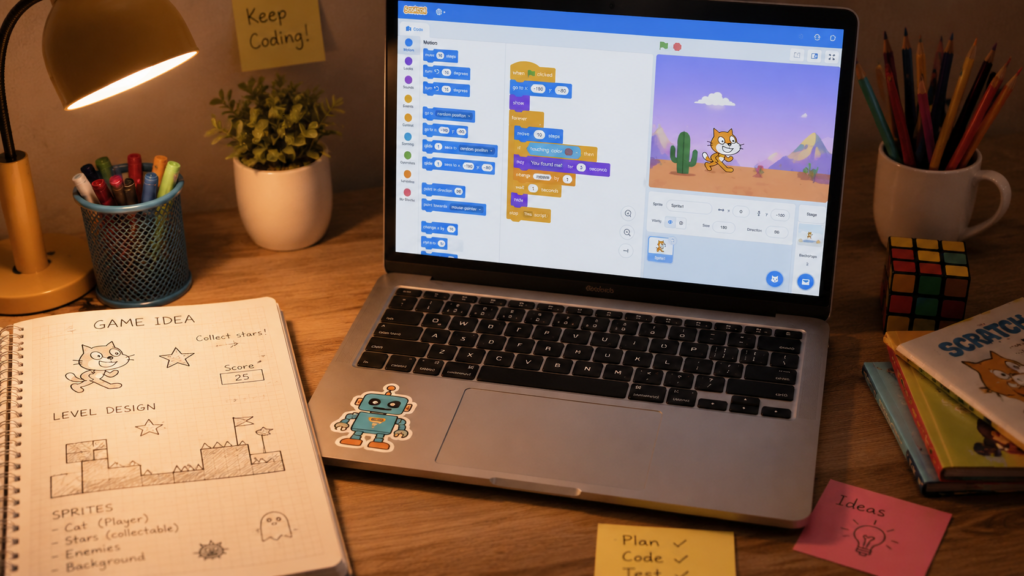
Scratch is the beginning — not the destination. Once your child’s confident with Scratch, they’re ready to explore real programming languages like Python.
Our complete guide to Scratch coding covers the progression path in detail. And if you’re wondering when to make the switch, our guide on what age kids should start learning Scratch answers that question with practical advice.
This summer, take your child’s skills further with our Summer Coding Camp for Kids 2026 — live online sessions designed around your child’s level and pace.
Yes. Scratch 3.0 is completely free to download and use on Windows 11. It’s developed by MIT Media Lab and has no paid tiers, subscriptions, or in-app purchases. Visit scratch.mit.edu/download to get the official offline app.
Scratch 3.0 replaced Flash-based Scratch 2.0 in 2019. It runs on modern web technologies (HTML5), works on tablets and mobile devices, supports more extensions, and has a redesigned editor. Scratch 2.0 no longer works on most modern browsers. Always download Scratch 3.0.
Yes — that’s exactly what the offline editor is for. After downloading and installing the Scratch app on Windows 11, your child can code, build, and save projects locally without any internet connection needed.
Not as a downloaded app. Windows 11 in S Mode restricts installations to the Microsoft Store only, and the Scratch app isn’t available there. Switch out of S Mode (free, in Windows Settings), or use the browser-based version at scratch.mit.edu instead.
Scratch is designed for children aged 8 to 16 as a primary audience. Younger children (ages 5–7) often enjoy ScratchJr, a simplified version for tablets. Our best coding classes for 7-year-olds can help you choose the right starting point for your child.
Yes. With a free Scratch account, your child can publish projects to the Scratch community, receive comments, and explore millions of projects created by other kids worldwide. ItsMyBot students regularly showcase their Scratch builds in our project showcases.
Downloading Scratch is the first move. Guiding your child to build real skills is the journey.
ItsMyBot’s personalised coding courses for kids aged 5–15 go beyond Scratch — into Python, JavaScript, AI, and robotics. Every course adapts to your child’s pace, and you stay informed at every milestone.

Online coding, AI, and robotics classes that help kids ages 6–18 build real skills — and confidence — one project at a time.
No commitment · Live class with an expert teacher
© ItsMyBot 2026. All Rights Reserved.