
Are you new to Scratch programming and feeling overwhelmed by all the colorful blocks? The problem is that many beginners look at Scratch’s block palette and don’t know where to start or which blocks to use for their projects. This confusion grows when you see experienced programmers effortlessly combining blocks to create amazing games and animations. The solution? Understanding the 10 main types of blocks in Scratch and how they work together to bring your creative ideas to life.
In this comprehensive guide, I’ll break down every category of blocks in Scratch, explain their purposes, and show you practical examples of how to use them effectively. Whether you’re a complete beginner, educator, or parent helping a child learn to code, this guide will transform you from confused to confident in no time!
Blocks are the fundamental building pieces of Scratch coding. Think of them as digital LEGO bricks – each block represents a specific command or instruction that tells your sprite (character) what to do. When you snap blocks together, you create scripts that control your sprite’s behavior.
Why Blocks Make Programming Easy:
According to educational research, block-based programming environments help students learn computational thinking concepts 60% faster than traditional text-based programming languages.
The 10 Main Block Categories in Scratch:
Pro Tip: Before diving deep into blocks, make sure you understand basic programming concepts in Scratch to maximize your learning experience.
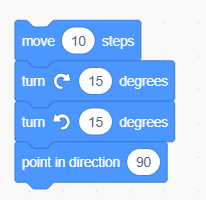
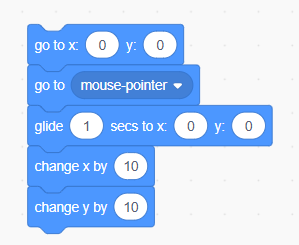
Motion blocks (colored blue) control how sprites move around the stage. These are often the first blocks beginners use because movement creates immediate, visible results.
Basic Movement:
Position Control:
Practical Example: Creating a Moving Car
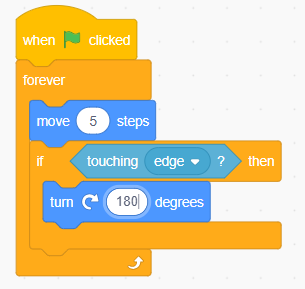
Advanced Motion Techniques:
Motion blocks are essential for creating platformer games, maze games, and any project involving movement. Master these blocks first, as they form the foundation of most interactive projects.
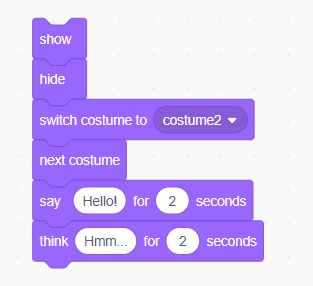
Looks blocks (colored purple) control your sprite’s appearance, size, visibility, and visual effects. These blocks are crucial for creating engaging, polished projects.
Basic Appearance:
Size and Effects:
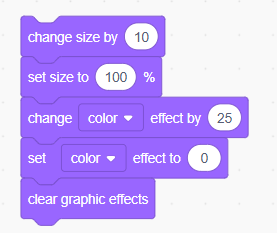
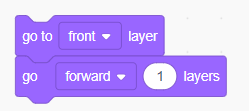
Layer Control:
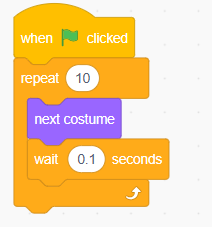
Animation Sequences:
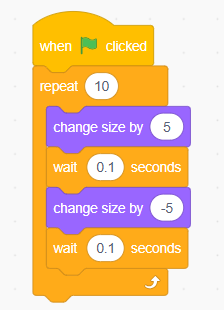
Pulsing Effect:
Color-Changing Background:
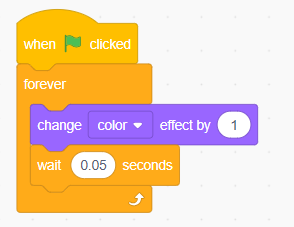
Professional Tips:
Looks blocks are essential for drawing applications, animated stories, and any project where visual appeal matters. They’re particularly important in game development for creating engaging user interfaces.
Sound blocks (colored pink) add audio elements to your projects, from simple sound effects to complex musical compositions. Audio significantly enhances user engagement and provides important feedback.
Basic Audio:
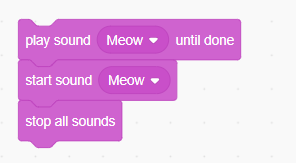
Music and Instruments:
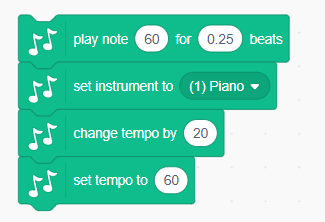
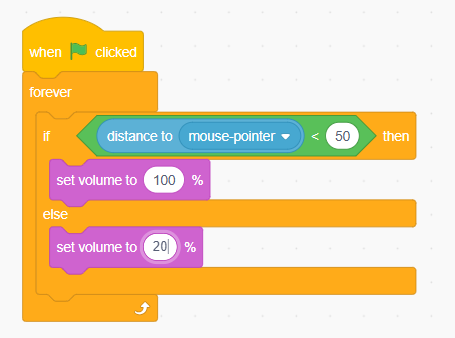
Volume Control:
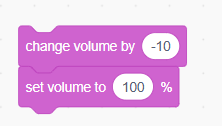
Simple Music Player:
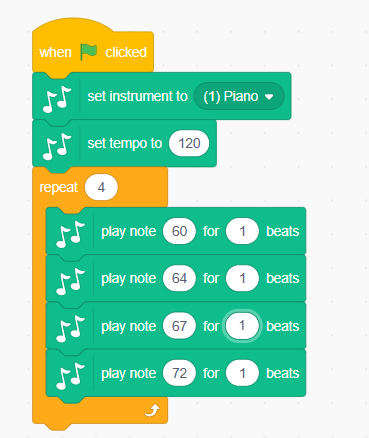
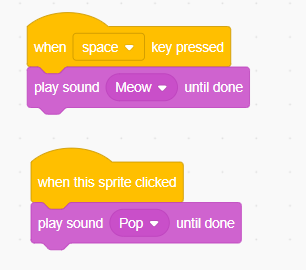
Interactive Sound Effects:
Dynamic Volume Control:
Audio Best Practices:
Sound blocks are crucial for creating immersive music players, interactive games, and engaging educational content.
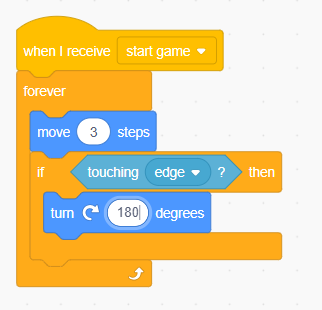
Events blocks (colored yellow) are the starting points of your programs. They detect when something happens and trigger your code to run. Every Scratch project needs at least one event block to begin execution.
Program Starters:
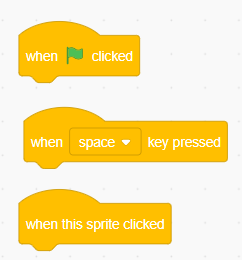
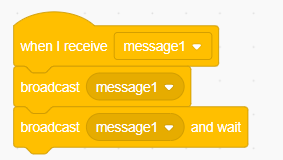
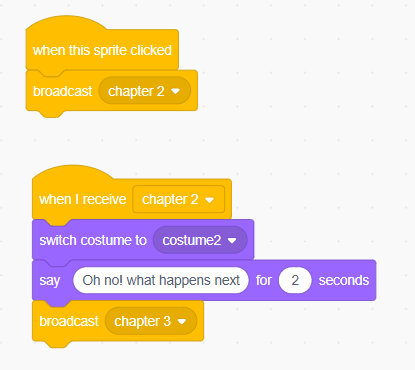
Communication Events:
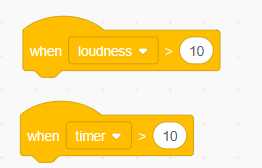
Sensor Events:
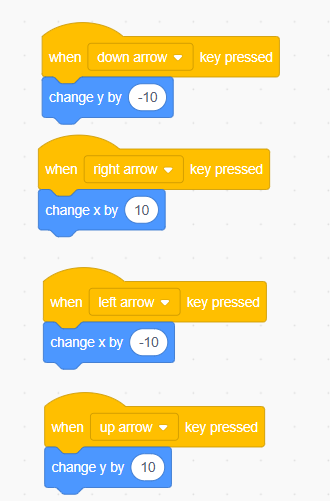
Multi-Key Controls:
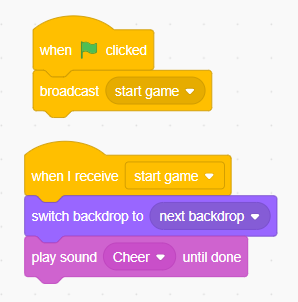
Game State Management:
Interactive Storytelling:
Advanced Event Patterns:
Events are the backbone of interactive projects. Master them to create responsive educational games and engaging user experiences.
Control blocks (colored orange) determine the flow and logic of your programs. They create loops, make decisions, and control when different parts of your code run. These blocks are essential for creating intelligent, responsive programs.
Basic Loops:
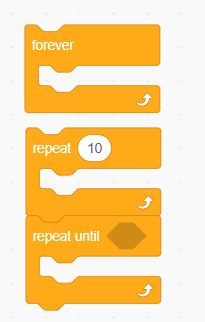
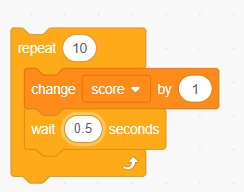
Advanced Loops:
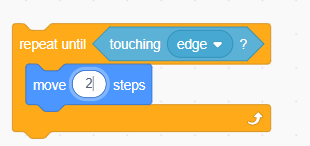
Conditional Statements:
Complex Conditions
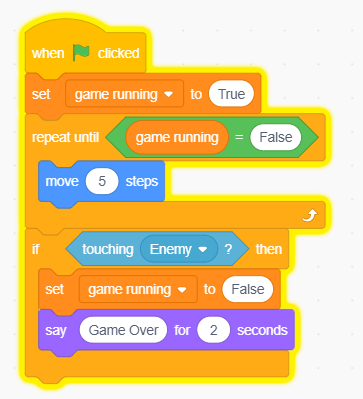
Game Loop Structure:
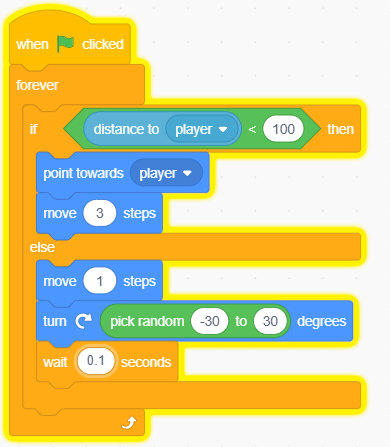
Smart AI Behavior:
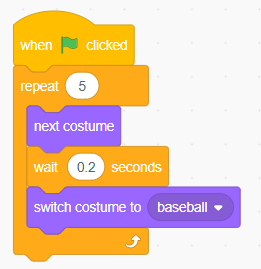
Animation Timing:
Control blocks are fundamental to creating complex games, interactive stories, and any project requiring decision-making or repetitive actions.
Sensing blocks (colored light blue) gather information from the environment, user input, and sprite interactions. They’re the “eyes and ears” of your programs, allowing sprites to respond intelligently to their surroundings.
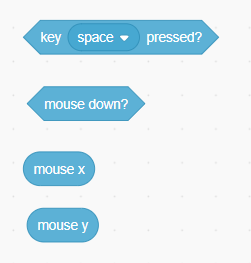
User Input:
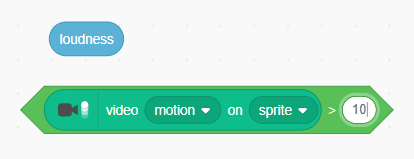
Microphone and Camera:
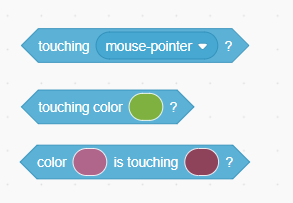
Collision Detection:
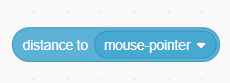
Distance and Direction:
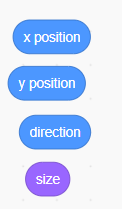
Sprite Properties:
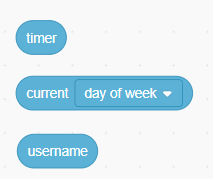
Time and System:
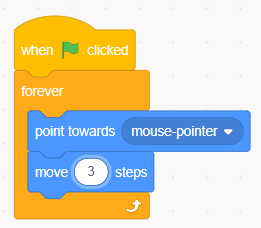
Mouse-Following Sprite:
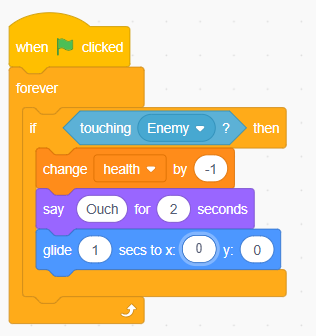
Collision-Based Game Mechanics:
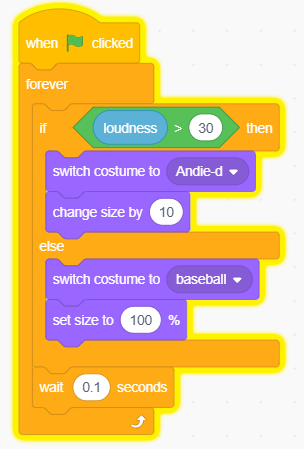
Sound-Activated Animation:
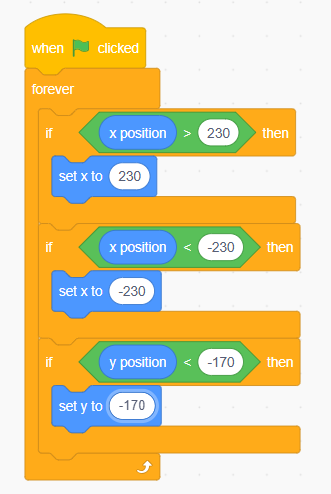
Boundary Detection:
Sensing blocks are crucial for creating interactive experiences, responsive games, and projects that react to real-world input.
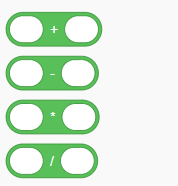
Operators blocks (colored green) perform mathematical calculations, string manipulations, and logical comparisons. They’re the computational engine that enables complex behaviors and intelligent decision-making in your projects.
Basic Math:

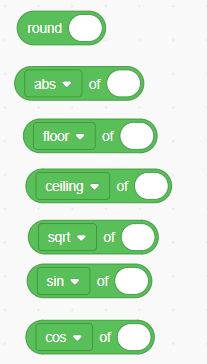
Advanced Math:
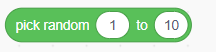
Random Numbers:
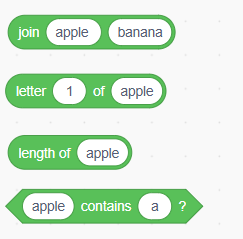
Text Manipulation:
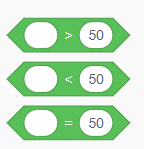
Comparison Operators:
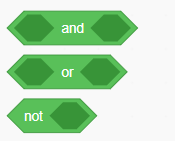
Boolean Logic:
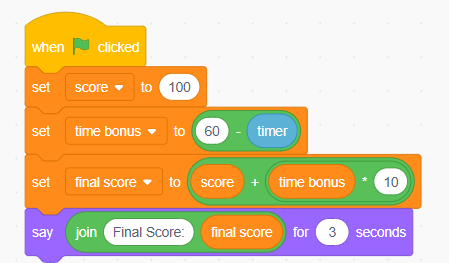
Score Calculation System:
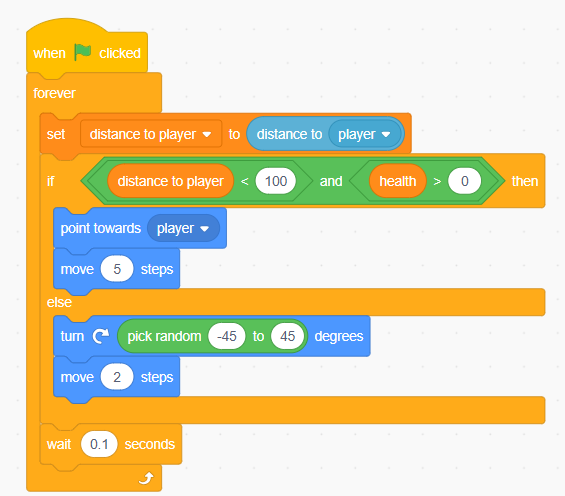
Intelligent Enemy AI:
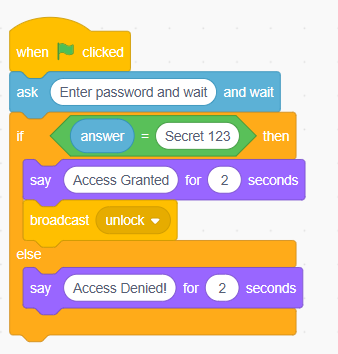
Password Validation:
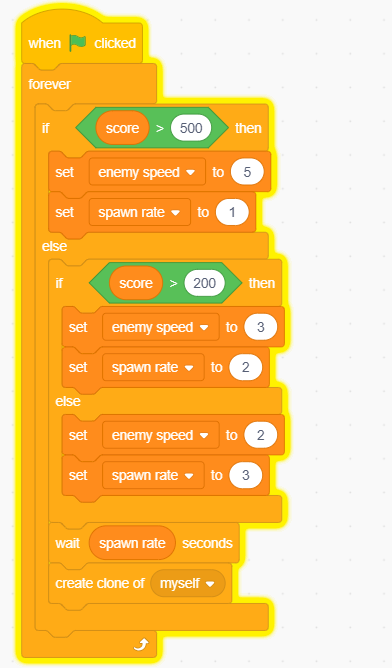
Dynamic Difficulty Adjustment:
Text Processing:
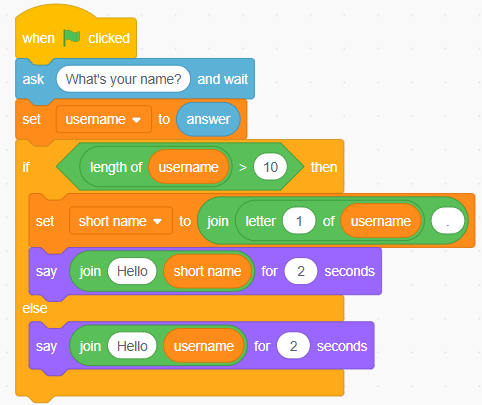
Operators are essential for creating calculator applications, complex game mechanics, and any project requiring mathematical calculations or logical decision-making.
Variables blocks (colored red/orange) store and manipulate data in your programs. They’re like containers that hold information you want to remember and use later, such as scores, player names, or game states.
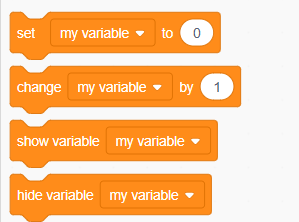
Basic Variable Operations:
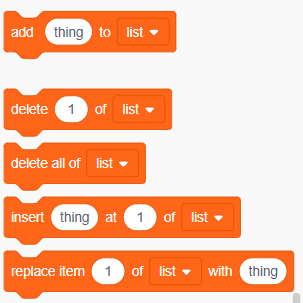
List Operations:
Global Variables:
Sprite-Only Variables:
Cloud Variables:
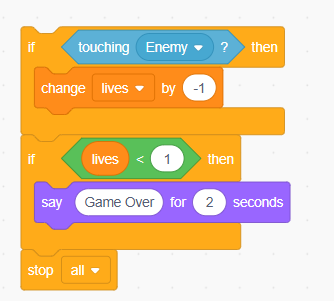
Game Score System:
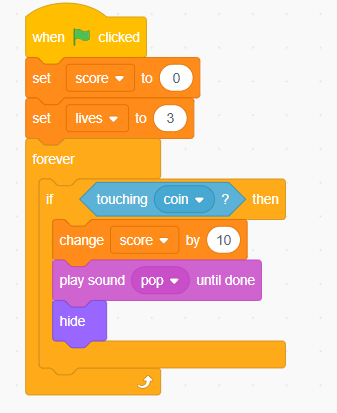
High Score Tracking:
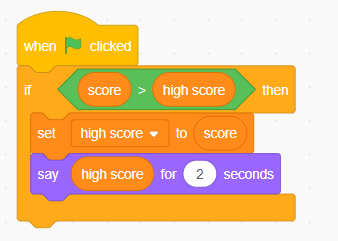
Variables are fundamental to creating persistent game experiences, user profiles, and any project that needs to remember information between interactions.
My Blocks (colored purple) allow you to create custom functions and procedures. They help organize your code, reduce repetition, and make complex projects more manageable. Think of them as your personal toolbox of reusable code snippets.
Basic Custom Block:
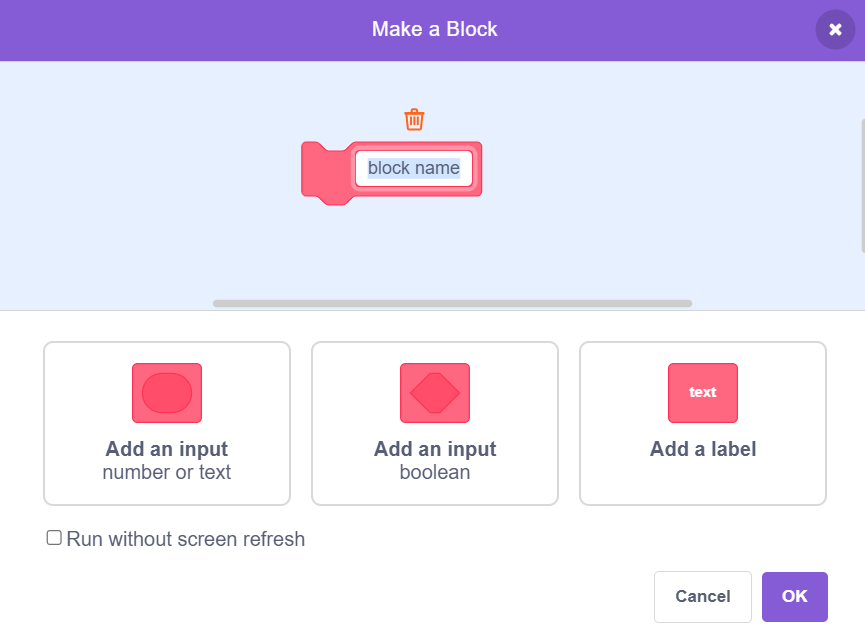
Simple Action Blocks:
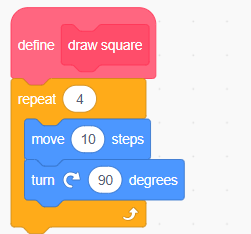
Blocks with Parameters:
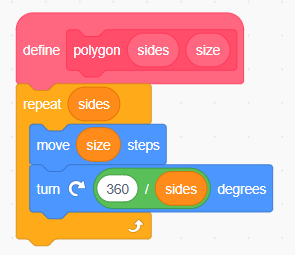
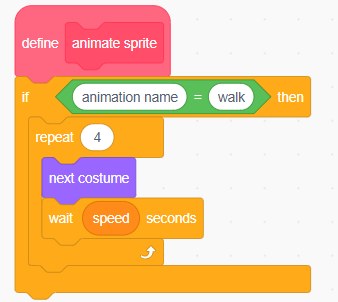
Animation System:
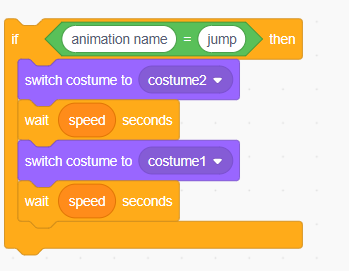
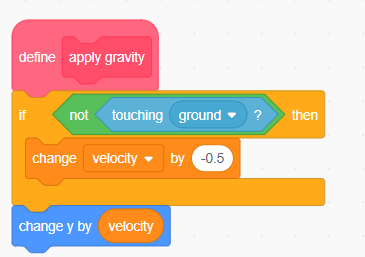
Game Physics:
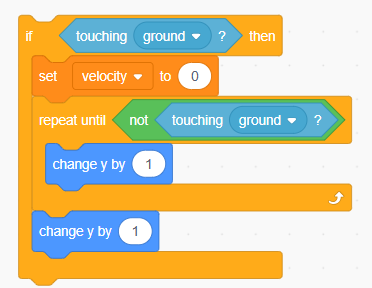
Code Organization:
Reusability:
Modularity:
Professional Development Practice:
Custom blocks are essential for creating complex games, maintaining large projects, and developing good programming habits that transfer to other languages.
Extensions add specialized blocks to Scratch for specific purposes like hardware control, advanced graphics, or educational tools. They expand Scratch’s capabilities beyond the core block set.
Music Extension:
Pen Extension:
Video Sensing Extension:
Text-to-Speech Extension:
Translate Extension:
Micro:bit Extension:
LEGO Extensions:
Installation Process:
Project Planning:
Best Practices:
Extensions enable advanced projects in robotics education, IoT development, and specialized applications beyond basic Scratch programming.
Mastering Scratch blocks isn’t just about knowing what each block does – it’s about using them efficiently and creating maintainable, professional-quality projects.
Script Structure:
Clean Code Example:
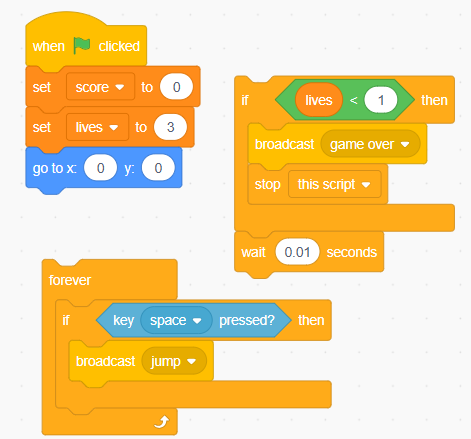
Efficient Block Usage:
Variable Names:
Custom Block Names:
Common Mistakes to Avoid:
Script Running Too Slowly:
Symptoms: Laggy movement, delayed responses, low frame rate
Common Causes:
Solutions:
// Bad: No wait block

forever

    move (1) steps

end

// Good: Includes wait

forever

    move (1) steps

    wait (0.03) seconds

end

// Better: Optimized movement

forever

    move (3) steps

    wait (0.1) seconds

end
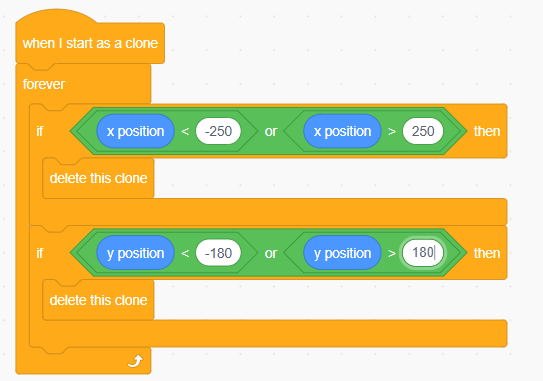
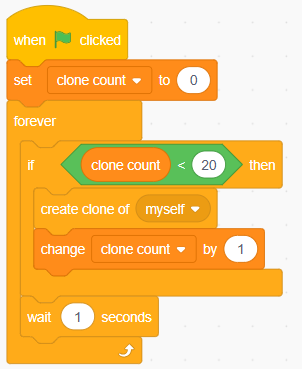
Memory Issues:
Symptoms: Project becomes unresponsive, sprites disappear, sounds stop working
Solutions:
Variables Not Updating Correctly:
Common Issues:
Debugging Technique:
// Add temporary display blocks

when flag clicked

forever

    say (join [Score: ] (score)) for (0.1) seconds

    // Your other code here

end
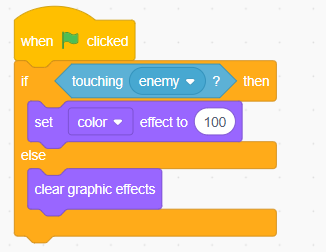
Collision Detection Not Working:
Troubleshooting Steps:
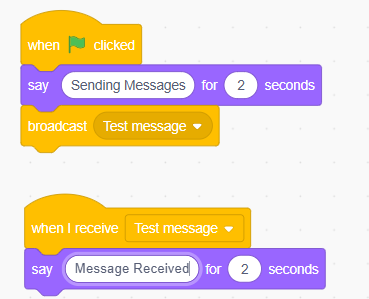
Broadcasts Not Received:
Check These Issues:
Debug Pattern:
Event Blocks Not Triggering:
Common Causes:
Sounds Not Playing:
Troubleshooting:
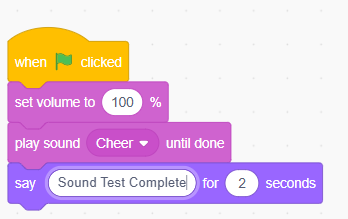
Check:
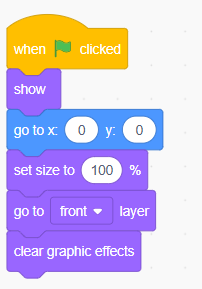
Sprites Not Appearing:
Common Issues:
Quick Fixes:
Systematic Debugging Process:
Remember, debugging is a normal part of programming. Even professional developers spend significant time troubleshooting their code!
Congratulations! You’ve now explored all 10 types of blocks in Scratch and learned how they work together to create amazing interactive projects. This comprehensive knowledge forms the foundation for unlimited creative possibilities in visual programming.
🎯 Key Concepts You’ve Mastered:
🚀 Your Next Steps in Scratch Programming:
💡 Professional Development Path:
Understanding Scratch blocks isn’t just about creating fun projects – you’re developing computational thinking skills that are valuable in many STEM careers. The logical thinking, problem-solving approaches, and systematic debugging techniques you’ve learned apply to all forms of programming and technology work.
🎮 Project Ideas to Apply Your Knowledge:
🌟 Remember This:
Every expert programmer started with the basics. Your understanding of Scratch blocks gives you a solid foundation in programming concepts that transfer to any language or platform. Whether you pursue game development, web design, robotics, or AI, these fundamental skills will serve you well throughout your journey.
The most important lesson? Programming is creative problem-solving with infinite possibilities. Now that you understand the building blocks, the only limit is your imagination!
Ready to Start Building? Open Scratch right now and experiment with different block combinations. Try recreating some of the examples from this guide, then modify them to create something uniquely yours. The best way to master blocks is through hands-on practice and experimentation.
Want More Coding Adventures? Explore our comprehensive collection of interactive coding projects for kids and discover new ways to apply your Scratch block knowledge. The journey from beginner to expert starts with a single block! 🎨✨
Last Updated: January 2025 | Author: Certified Scratch Educator with 15+ years of experience teaching visual programming to students worldwide. Specializing in computational thinking, game design, and STEM education.
Want your child to go further? Explore ItsMyBot’s Little Coder — structured coding courses designed for kids!

Online coding, AI, and robotics classes that help kids ages 6–18 build real skills — and confidence — one project at a time.
No commitment · Live class with an expert teacher
© ItsMyBot 2026. All Rights Reserved.