

Reading Time: 16 mins
Last updated: 15 January 2026
Is your child’s screen time turning into wasted time? You’re watching hours disappear into games and videos, but you know technology could unlock their potential instead. The challenge? Finding a computer that balances education, safety, and value without breaking your budget or exposing them to online risks.
Without the right computer, you’re gambling with your child’s future. They might fall behind classmates who are already learning to code, create digital art, and build tech skills that lead to six-figure careers. Meanwhile, cheap computers frustrate them with crashes and slowdowns, killing their curiosity before it even starts.
Transform screen time into skill time with the perfect computer. This guide reveals exactly which desktops and laptops turn children into confident creators, from budget-friendly options under $500 to premium systems that grow with their ambitions. You’ll discover which computers support coding education, creative projects, and safe exploration—so your child builds the skills that matter.
Desktop computers create better learning environments than tablets or phones for skill development.
Performance advantages mean your child works without frustrating delays. Desktop processors handle multiple applications—running Scratch coding projects while researching homework and video chatting with study groups.
Ergonomic benefits protect growing bodies during longer learning sessions. Proper desk setups reduce eye strain and improve posture, creating healthier study habits that last a lifetime.
Cost efficiency delivers more computing power per dollar spent. The same budget gets you significantly faster processors and larger screens compared to laptop equivalents.
Upgrade flexibility extends the computer’s useful life as your child’s needs evolve. Desktop systems let you add more memory, storage, or graphics power without replacing the entire machine.
Focus on these key specifications when evaluating any computer for your child.
Your child needs smooth performance for educational software and creative applications.
Recommended processors:
RAM requirements:
Balance speed and capacity to support your child’s growing digital library.
SSD for operating system provides lightning-fast startup and application loading. Even budget builds should include at least 256GB SSD for the main drive.
HDD for file storage offers affordable space for projects, photos, and videos. Adding a 1TB hard drive costs under $50 and prevents “out of space” headaches.
Cloud backup options protect irreplaceable school projects and creative work. Services like Google Drive or OneDrive provide automatic backups without thinking about it.
Match graphics power to your child’s interests and activities.
Integrated graphics handle everyday tasks perfectly:
Dedicated graphics cards unlock creative potential:
Built-in protections create safe digital spaces for exploration and learning.
Parental control software manages screen time and content access. Windows 11 and macOS include robust family safety features without additional costs.
Secure browsing options block inappropriate websites and protect against online threats. Combined with antivirus protection, these keep your child’s online experience safe.
Physical durability matters more than you think. Look for solid construction that survives accidental bumps and the occasional spilled drink.
Choose computers that match your child’s developmental stage and learning needs.

HP 23.8″ All-in-One Desktop AI PC (24-cr2000t)
This all-in-one system makes setup incredibly simple—everything’s built into the display.
Why it transforms learning: The touchscreen interface feels natural for kids transitioning from tablets. Built-in AI assistance helps with homework questions, explaining concepts in kid-friendly language.
Perfect for: Interactive educational games, digital art creation, video calls with grandparents, basic coding with visual programming tools.
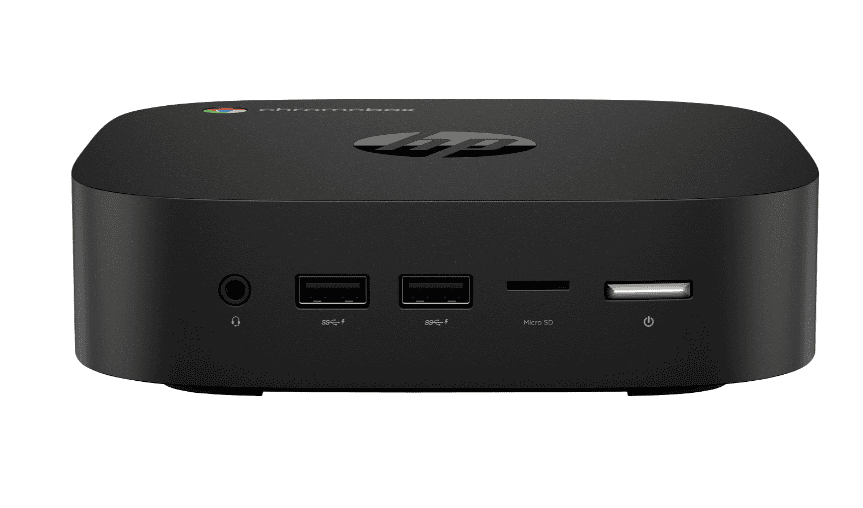
HP Chromebox G4
Ultra-compact computing that’s perfect for families using Google Classroom.
Why it builds confidence: Boots in seconds, updates automatically, and includes built-in virus protection. Kids focus on learning instead of tech troubleshooting.
Perfect for: Google Classroom users, families prioritizing safety and simplicity, space-limited rooms, students doing primarily web-based work.

Lenovo IdeaCentre 3
Reliable performance that doesn’t demand a premium price.
Why it supports growth: Handles school projects, light gaming, and creative experiments with room to upgrade later. Quiet operation means undisturbed concentration.
Perfect for: Homework and research, Minecraft and Roblox gaming, beginner coding projects, video editing for school projects.
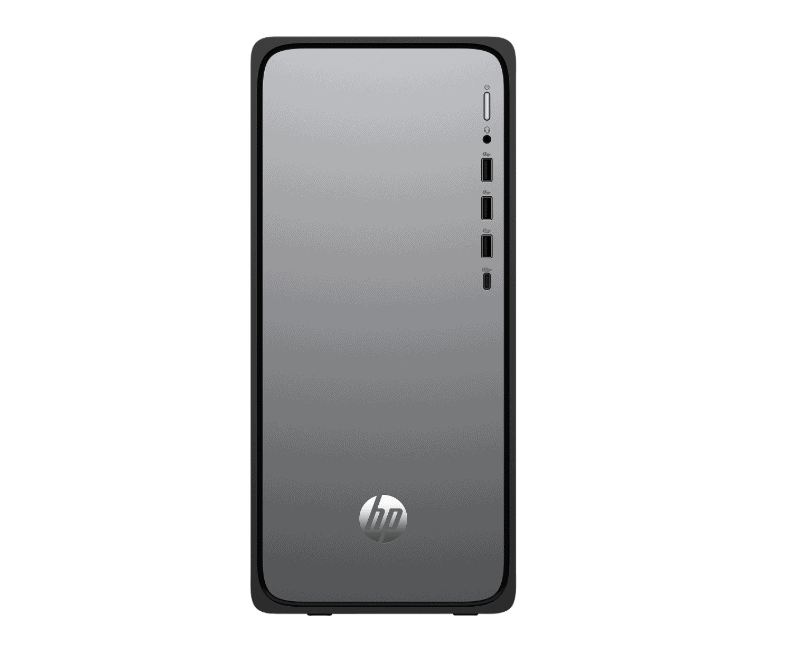
HP OmniDesk Desktop M02-0055t
Expandable power that grows with your child’s ambitions.
Why families love it: Dual storage provides speed and space. Multiple USB ports support all their devices—microphone, webcam, drawing tablet, and more.
Perfect for: Families with multiple children sharing the computer, content creators starting YouTube channels, students learning multiple programming languages.

OMEN 35L Gaming Desktop GT16
High-performance computing that handles everything from college prep to competitive gaming.
Why it unlocks potential: Handles AAA gaming, video editing, 3D rendering, and AI experiments without breaking a sweat. Easy upgrades extend its lifespan through college.
Perfect for: Aspiring game developers, video content creators, competitive esports players, teens exploring advanced STEM fields.

Dell Inspiron Desktop
Solid all-around performance with legendary Dell reliability.
Why it’s dependable: Dell’s reputation for durability and support means fewer headaches. Handles everything teens need for school and hobbies.
Perfect for: College-bound students, families wanting proven reliability, users needing strong tech support, general-purpose computing needs.
Portable options that balance performance, durability, and value.
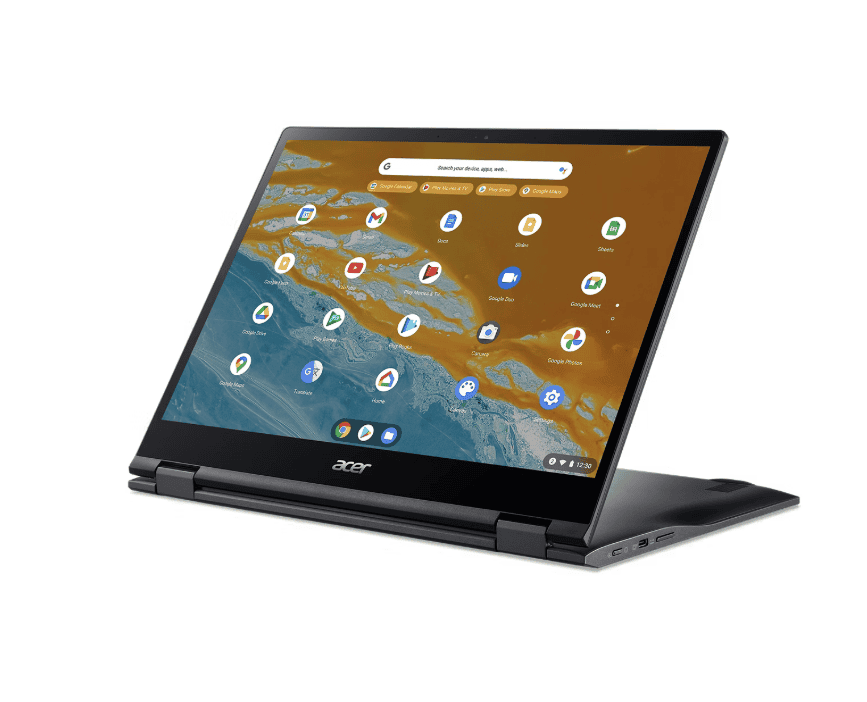
Acer Chromebook Spin 513
Versatility meets affordability in this 2-in-1 convertible design.
Why it adapts: Flexible modes support different learning styles—laptop mode for typing essays, tablet mode for reading, tent mode for watching educational videos.
Perfect for: Students using Google Workspace, families wanting laptop and tablet in one device, homework and entertainment balance.
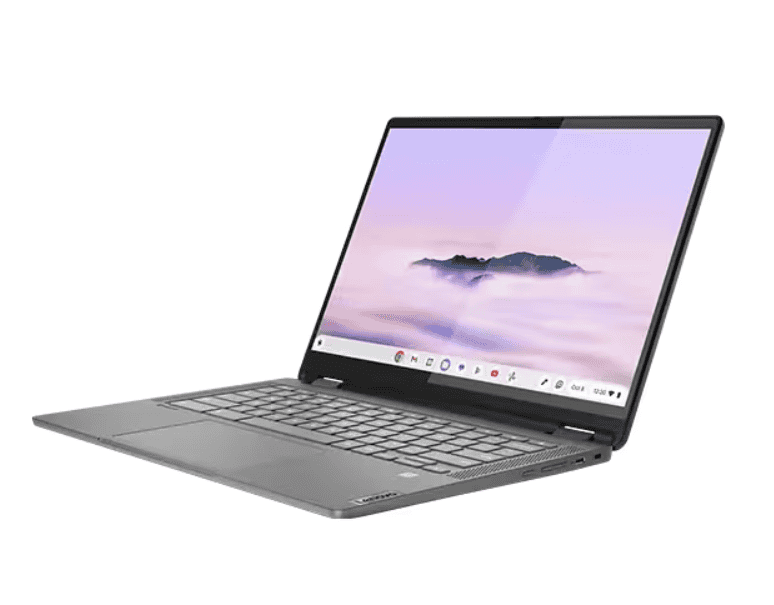
Lenovo IdeaPad Flex 5i Chromebook (2023)
Fast performance in a compact, value-packed package.
Why students choose it: Handles multiple tabs and applications without slowdowns. Ample storage means keeping all school files locally available.
Perfect for: Cloud-based learning, Google ecosystem users, students needing reliable performance, families prioritizing value.
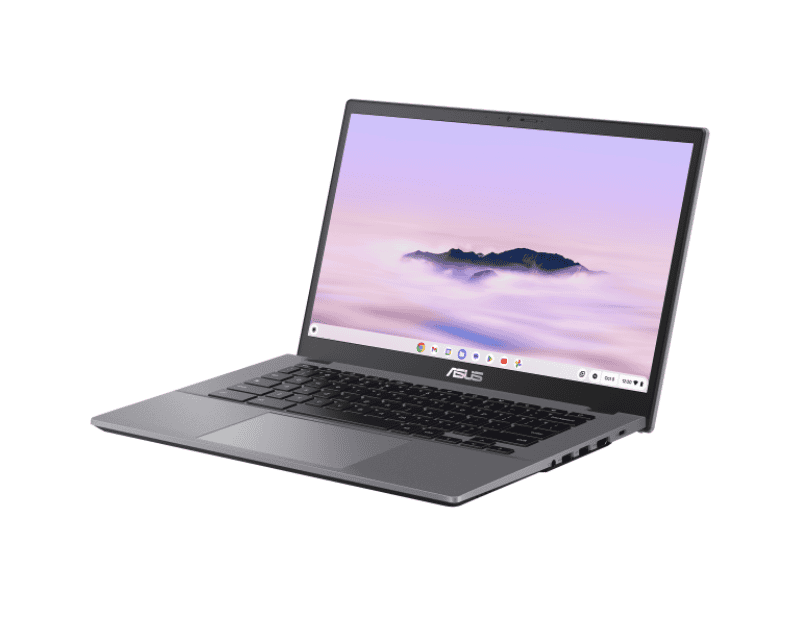
Asus Chromebook Plus CX34 (2025)
Latest technology with enhanced capabilities for 2026.
Why it’s future-ready: Newest features ensure compatibility with emerging educational software and web applications throughout high school years.
Perfect for: Families investing in longevity, students wanting latest technology, Google Classroom power users.
Acer Aspire 3 (A315-24P)
Most affordable Windows laptop without sacrificing essential features.
Why compatibility matters: Runs all Windows applications without workarounds. Perfect for students whose schools use Windows-specific software.
Perfect for: Budget-conscious families, students needing Windows compatibility, homework and basic computing needs.
Acer Aspire Go 15
Larger screen and comfortable keyboard for extended work sessions.
Why size matters: Bigger screen reduces eye strain during research projects and makes split-screen multitasking actually usable.
Perfect for: Students writing lengthy papers, families preferring Windows ecosystem, users who value screen real estate.
Lenovo IdeaPad Flex 5i 14 (2023)
Premium 2-in-1 Windows experience with versatility.
Why flexibility helps: Tablet mode supports digital note-taking with stylus. Laptop mode provides full Windows power for any application.
Perfect for: Creative projects requiring touchscreen, note-taking in classes, versatile computing needs, families wanting premium features.
Apple MacBook Air M2
Top-tier performance and build quality for serious student creators.
Why it’s an investment: Lasts through high school and college without slowing down. Industry-leading battery life means working anywhere without hunting for outlets.
Perfect for: Older children and teens (14+), families invested in Apple ecosystem, creative work (video, music, design), students heading to college.
Apple MacBook Air M1 (Late 2020)
More affordable entry to the Apple ecosystem with proven performance.
Why it still delivers: M1 chip remains powerful for all student needs. Savings versus M2 can go toward accessories or software.
Perfect for: Families wanting Mac experience at lower cost, students needing proven reliability, budget-conscious Apple fans.
Lenovo LOQ Essential 15 Gen 9
Gaming performance that handles schoolwork equally well.
Why gamers love it: Runs Fortnite, Roblox, and demanding titles smoothly. Refresh rate display makes gameplay silky smooth.
Perfect for: Teen gamers, aspiring game developers, students wanting one machine for everything, future-proofing through college.
Great computers that don’t sacrifice essential features for affordability.
Desktop Recommendations:
Acer Aspire TC (~$500)
HP Slim Desktop (~$450)
Laptop Recommendations:
Amazon Fire HD 10 Kids Pro (2023) (~$190-250)
These budget options prove you don’t need premium prices for quality learning experiences.
Create secure digital environments where children explore confidently.
Windows 11 Family Safety provides comprehensive controls:
macOS Parental Controls offer Apple ecosystem protection:
ChromeOS Supervised Accounts simplify management:
Antivirus software protects against malware and threats. Windows includes Microsoft Defender, which provides solid protection without additional costs.
Physical security measures prevent unauthorized access:
Help your child develop healthy digital habits:
Recognize suspicious links before clicking them. Teach them to hover over links and check URLs before proceeding.
Protect personal information by never sharing addresses, phone numbers, or school details online without permission.
Question requests for passwords even if they seem to come from trusted sources. Real services never ask for passwords via email or messages.
Report uncomfortable interactions immediately to parents or trusted adults. Create an open environment where they feel safe discussing online experiences.
Understand the tradeoffs to choose what fits your family’s needs.
| Feature | Desktop | Laptop |
|---|---|---|
| Performance per Dollar | Superior—more power for less money | Moderate—pay premium for portability |
| Durability | High—replaceable peripherals if damaged | Lower—more fragile, costly repairs |
| Upgradability | Excellent—easy component upgrades | Limited—few upgradeable parts |
| Portability | None—stationary use only | Excellent—use anywhere |
| Screen Size | Larger displays available | 11-15″ typical range |
| Best For | Home learning, gaming, shared family use | School, travel, flexible spaces |
Choose desktops when:
Choose laptops when:
Learn from other parents’ experiences to make smarter decisions.
Why it’s problematic: The cheapest option often lacks power for current educational software. Within months, frustrating slowdowns kill your child’s enthusiasm for learning.
Correct approach: Set a realistic budget that includes adequate specifications. A $500 computer that lasts four years beats a $300 machine that’s obsolete in one year.
Why it’s problematic: Sealed systems become obsolete faster and cost more to replace. Your “bargain” turns expensive when you’re buying a whole new computer in two years.
Correct approach: Choose computers that allow RAM and storage upgrades. This extends useful life significantly, saving hundreds over time.
Why it’s problematic: Poor posture during long study sessions leads to neck pain, eye strain, and bad habits that persist into adulthood.
Correct approach: Invest in proper desk height, external monitor, comfortable chair, and correct lighting. These additions cost little but protect your child’s health.
Why it’s problematic: Unlimited internet access exposes children to inappropriate content, online predators, and unhealthy screen time habits before they’re ready.
Correct approach: Enable parental controls from day one. Review and adjust settings as your child matures and demonstrates responsibility.
Why it’s problematic: When problems arise, expensive repairs or replacements catch families unprepared. Technical issues interrupt schoolwork at critical moments.
Correct approach: Consider extended warranties for laptops. Research manufacturer support reputation before buying. Have a backup plan for when issues occur.
Create an environment that maximizes learning and minimizes distractions.
Proper desk height ensures arms rest at 90-degree angles while typing. Feet should rest flat on floor or footrest.
Monitor positioning places the top of the screen at or slightly below eye level. Distance should be arm’s length away to reduce eye strain.
Adequate lighting combines natural light from windows with adjustable task lighting. Avoid glare on screen surfaces.
Organized supplies keep necessary items within reach—notebooks, pencils, charging cables. Reduce distractions by removing non-essential items.
Regular breaks following the 20-20-20 rule: Every 20 minutes, look at something 20 feet away for 20 seconds. This prevents eye strain.
Scheduled screen time creates structure around computer use. Balance educational activities with physical play and creative hobbies.
Tech-free zones preserve family time and sleep quality. Bedrooms and dinner tables remain screen-free spaces.
Clear expectations about acceptable use prevent conflicts. Create a family technology agreement everyone signs and follows.
Build digital literacy alongside technical skills for well-rounded development.
Mouse control games develop fine motor skills through fun activities. Sites like ABCmouse make learning to click and drag entertaining.
Basic keyboard familiarization starts with letter recognition and hunt-and-peck typing. Short sessions prevent frustration.
Safe browsing introduction teaches recognizing approved websites. Use kid-friendly browsers with whitelist-only access.
Visual programming with block-based tools like ScratchJr introduces logical thinking without requiring reading skills.
Typing skills development improves to touch typing proficiency. Free programs like TypingClub make practice enjoyable.
Intermediate coding with Scratch projects creates games and animations. Success builds confidence in technical abilities.
Digital citizenship covers online etiquette, copyright basics, and recognizing misinformation. Prepare them for social media years ahead.
Basic troubleshooting empowers kids to solve simple problems—restarting, checking connections, updating software. Reduces constant parent intervention.
Text-based programming with Python or JavaScript opens real-world development. AI literacy prepares them for tomorrow’s careers.
Creative software in video editing, graphic design, or music production lets them explore artistic interests through technology.
Online safety mastery includes protecting personal information, recognizing scams, and understanding digital footprints. Critical skills for their future.
Career exploration connects tech skills to future opportunities. Show how robotics, coding, and design lead to rewarding careers.
Simple practices extend your computer investment for years.
Software updates improve security and performance. Enable automatic updates or check weekly for critical patches.
Disk cleanup removes temporary files and unused programs. Run built-in cleanup tools monthly to recover storage space.
Virus scans catch threats before they cause problems. Weekly quick scans and monthly full scans provide protection.
Physical cleaning prevents overheating and extends component life. Use compressed air to remove dust from vents quarterly.
Slow performance despite maintenance signals aging hardware. If restarts and cleanup don’t help, consider component upgrades.
Insufficient storage becomes problematic when less than 20% remains free. Adding storage costs less than new computers.
Outdated software compatibility means new educational programs won’t run. Sometimes upgrading RAM or storage solves this without replacing everything.
Multiple component failures indicate it’s time for new hardware. When repair costs approach 50% of replacement cost, invest in new equipment.
Children can start using computers as early as 5 years old with proper supervision and age-appropriate content. Many families introduce dedicated computers around 7-8 years when kids begin elementary school and need them for homework.
The right age depends on your child’s maturity, your family’s needs, and available supervision. Start with shared family computers before transitioning to personal devices.
Desktops typically offer better value for 10-year-olds who primarily work at home. They provide more power for the price, easier upgrades, and better ergonomics for growing bodies.
Choose laptops if your child needs portability for school or frequently works in different locations. Consider your specific situation rather than following blanket rules.
Budget $400-600 for quality computers meeting most children’s needs. This range delivers adequate performance for schoolwork, creative projects, and moderate gaming without overspending.
Invest more ($800+) only if your child has specific needs—serious gaming, video editing, or advanced programming. Spend less only for very young children who primarily need supervised internet access.
HP, , Dell, and Lenovo dominate the reliability rankings for family computers. All three offer strong customer support, reasonable warranties, and proven durability.
Apple products cost more but deliver exceptional longevity and user experience for families invested in their ecosystem.
Acer and Asus provide good value in budget segments. Quality remains solid despite lower prices.
Choose based on your budget, ecosystem preference, and available support rather than chasing specific brands.
Gaming computers excel at schoolwork since educational software demands far less power than modern games. The reverse isn’t true school computers often can’t handle gaming.
If budget allows, gaming systems provide excellent versatility for children interested in both education and entertainment. They’ll grow with your child’s increasing technical demands
Windows 11: Settings → Accounts → Family → Add family member → Child account. Configure screen time, app restrictions, and web filtering.
macOS: System Preferences → Screen Time → Family member → Limits and restrictions.
ChromeOS: Settings → People → Manage other people → Supervised users.
All major operating systems include comprehensive controls without requiring third-party software. Spend time configuring them properly from day one
20-24 inches suits most children’s needs for desktops. Larger screens reduce eye strain but take up more desk space.
13-15 inches works well for laptops, balancing portability and usability. Smaller screens become difficult for extended work sessions.
External monitors let laptop users enjoy larger displays at home while maintaining portability elsewhere. This provides flexibility without compromise.
New computers include full warranties, latest features, and guaranteed longevity. Worth the premium when budget allows.
Certified refurbished from manufacturers offers significant savings with warranty protection. HP, Dell, and Apple refurbished programs provide excellent value.
Avoid used computers from unknown sellers. Missing warranties and uncertain history make them risky investments for children’s education.
256GB SSD minimum handles operating system, applications, and basic file storage. This works for young children with mostly cloud-based work.
512GB SSD recommended provides comfortable space for growing file collections, offline videos, and creative projects.
1TB or more benefits teens creating large video files, managing music libraries, or installing numerous games and applications.
Cloud storage supplements local capacity affordably. Teach children to use Google Drive, OneDrive, or iCloud for automatic backups
Yes! Coding education works on virtually any modern computer. Visual programming tools like Scratch run smoothly even on budget machines.
More powerful computers benefit advanced coding—compiling large programs, running virtual machines, or AI development projects. But beginners need only basic specs.
Focus on getting started rather than waiting for perfect equipment. Skills matter more than hardware.
You now know exactly which computers turn screen time into skill time for your child.
For ages 5-10, the HP All-in-One AI PC or HP Chromebox provides perfect first computer experiences. Touchscreen interfaces and built-in safety features let them explore confidently.
For ages 11-15, the Lenovo IdeaCentre 3 or HP Pavilion Desktop balances performance and value beautifully. These systems handle schoolwork, creative projects, and moderate gaming without breaking budgets.
For ages 16+, consider the OMEN 35L Gaming Desktop or MacBook Air M2 for serious performance. These investments support them through high school and college years.
Remember these key principles:
The right computer unlocks your child’s potential to create, learn, and build skills that open doors to extraordinary careers. Whether they’re designing games, editing videos, or learning to code, you’re giving them tools that transform entertainment into education.
Ready to turn your child’s screen time into skill time? Explore ItsMyBot’s coding classes designed specifically for young learners. Our personalized, industry-level courses teach programming through projects kids actually want to build—no prior experience needed.
Start building your child’s tech skills today. Book a free trial class and watch them create their first project in minutes, not months.


